How to Add 301 Redirects in WordPress: Step-by-Step (2026)
Add 301 redirects in WordPress with the free Redirection plugin: add old and new URLs, fix 404s from the log, use regex for old date URLs and test.

On this page
To add a 301 redirect in WordPress, install the free Redirection plugin, open Tools > Redirection, enter the old path as the Source URL and the new address as the Target URL, and click Add Redirect. Redirection uses 301 (permanent) by default, and its 404s tab shows broken URLs that need one.
Time required: 15 minutes for a few redirects; longer for a full redesign map
What you'll need:
- WordPress admin access
- A list of old URLs and where each should go (a spreadsheet works)
- Ideally, a recent backup (see the backup guide)
When to use a 301 rather than a 302 is covered in 301 vs 302 redirects explained. This page is the how-to.
Step 1: Install Redirection and run the setup
Where: WordPress admin > Plugins > Add New Plugin, then Tools > Redirection
- Go to Plugins > Add New Plugin, search Redirection (by John Godley) and install and activate it.
- Open Tools > Redirection. The first time, a short setup runs.
- Keep Monitor permalink changes on (it adds a redirect automatically when you change a post's slug) and Keep a log of redirects and 404 errors on.
- Finish the setup so it creates its database tables.
If you already use an SEO plugin with redirects (for example Rank Math's redirection module), use one tool, not both, so you have one list to maintain.
Step 2: Add a single 301 redirect
Where: Tools > Redirection > Redirects > Add new redirection
- Source URL: the old path only, starting with a slash, for example
/old-services-page/. Leave out the domain. - Target URL: the new page, either a path (
/services/) or a full URL. - Group: Redirections is fine.
- Click Add Redirect. The new row shows code 301 and a hit counter.
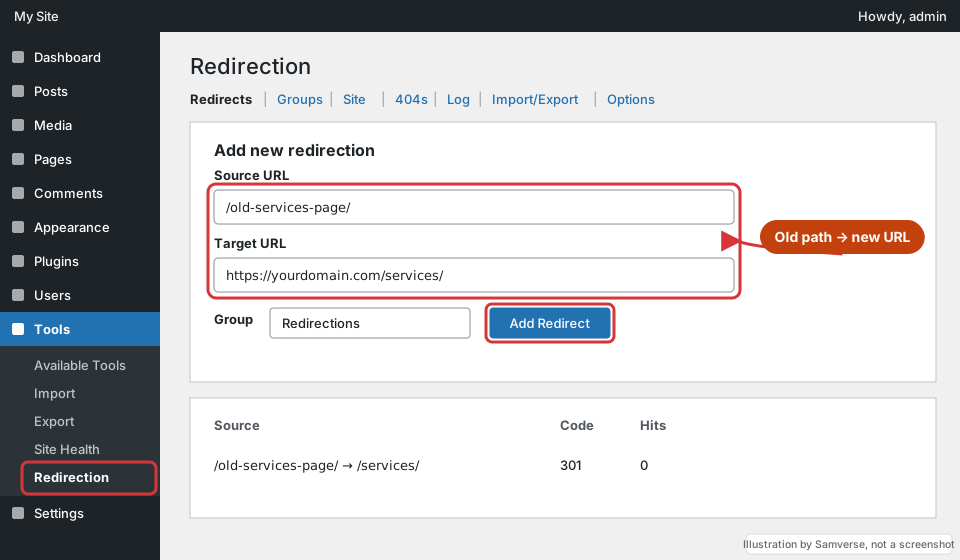
Redirect each old URL to its closest equivalent page, not everything to the homepage. Google treats mass redirects to the homepage like missing pages.
Step 3: Add many redirects at once
Where: Tools > Redirection > Import/Export
For a redesign or migration, build a two-column CSV (source, target) and import it from the Import/Export tab. Check a handful afterwards. The guide to redesigning without losing rankings explains how to build that list from Search Console and your old sitemap.
Step 4: Fix real 404s from the log
Where: Tools > Redirection > 404s
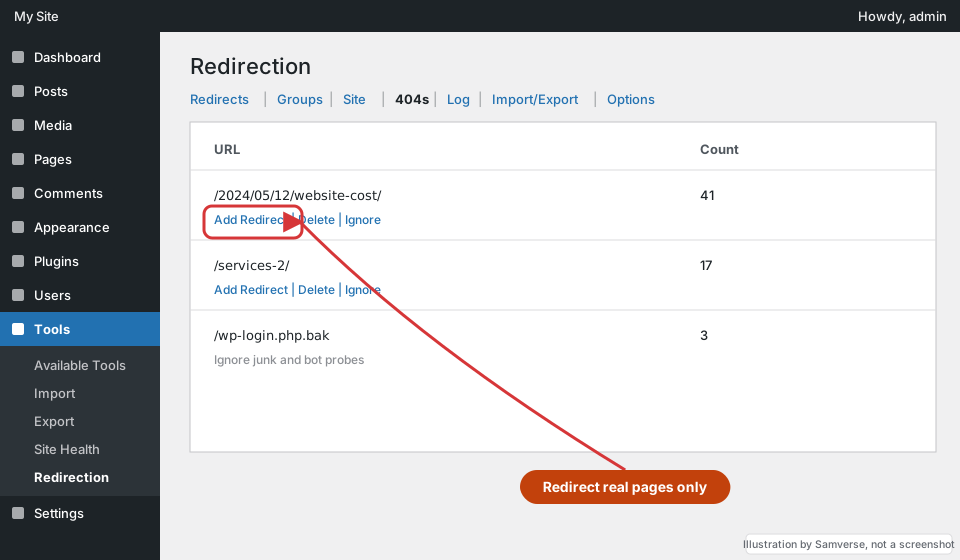
- Open the 404s tab. It lists URLs visitors and bots requested that do not exist, with a count.
- For a real old page (such as an old blog URL with hits), hover the row and click Add Redirect, then set the target.
- Ignore junk: bot probes for files like
wp-login.php.bakor random strings do not need redirects.
Step 5: Use a regex redirect for a URL pattern
Where: Tools > Redirection > Add new redirection > gear icon > Regex
If you changed permalinks from dated URLs (/2024/05/12/post-name/) to post-name URLs (/post-name/), one regular-expression redirect can cover every post:
- Click the gear icon on the add form to show advanced options, and tick Regex.
- Source URL:
^/\d{4}/\d{2}/\d{2}/(.*)$ - Target URL:
/$1 - HTTP code: 301 - Moved Permanently. Add it, then test three or four old URLs.
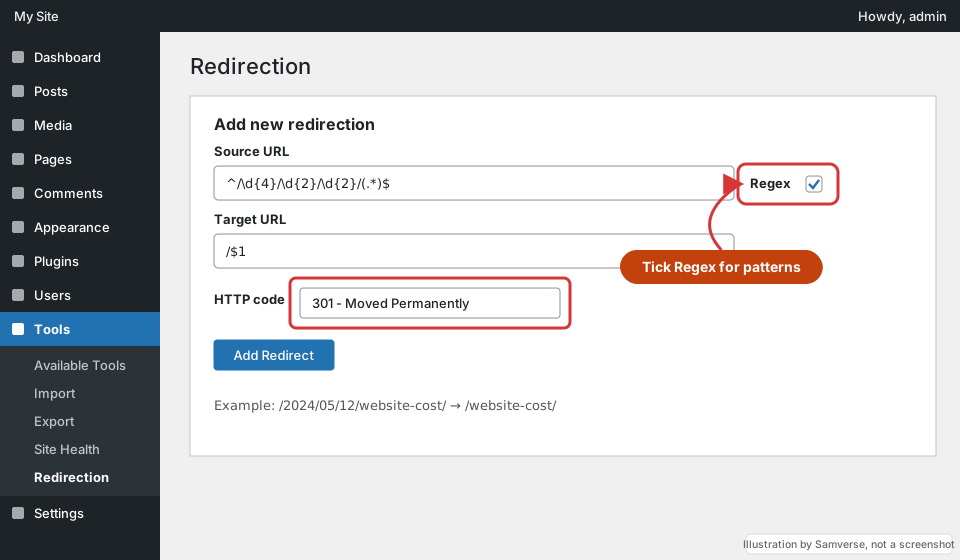
Regex redirects are powerful and easy to get wrong. Test on a staging site if you can (see staging sites explained), and keep patterns specific.
Step 6: Test every redirect
- Open each old URL in a private window and check it lands on the right page in one hop.
- Use a redirect checker or your browser's Network tab to confirm the status is 301, not 302.
- Update internal links and menus to point at the new URLs directly; redirects are a safety net, not a replacement for correct links.
- Watch the 404s tab and Search Console's Pages report for a few weeks.
Which redirects you actually need
You do not need a redirect for every URL that ever existed. Prioritise like this:
- Pages with traffic or rankings: anything that appears in Search Console's Performance report in the last few months.
- Pages with backlinks: check the Links report in Search Console (Top linked pages). Losing these loses the value of those links.
- URLs printed or shared offline: brochures, visiting cards, QR codes, Google Business Profile, WhatsApp catalogues and old emails.
- Old pages people still visit: the 404s tab will show these within days of a change.
Pages with no traffic, no links and no close replacement can simply return a 404 (or 410 if you removed them on purpose). That is normal and does not harm the rest of the site.
Keep one master list (a spreadsheet with old URL, new URL and date) alongside the plugin. When the site is redesigned again, you will need it to update old redirects so they point straight at the newest URLs instead of forming chains. Also add a helpful 404 page with search and key links, for the visits that slip through.
Troubleshooting
- Redirect does nothing: a cached copy is being served. Purge your cache plugin and CDN cache, then retest.
- Redirect loop: the target matches the source pattern (common with regex). Make the pattern stricter.
- Old URL still shows the page: the old page still exists. Delete or unpublish it, or the redirect will not trigger.
- Hit counter stays at zero: another redirect (host, .htaccess or SEO plugin) is catching the URL first.
FAQs
How do I add a 301 redirect in WordPress without a plugin?
On Apache or LiteSpeed hosting you can add a Redirect 301 /old/ https://yourdomain.com/new/ line to the .htaccess file. A plugin is safer for non-developers because a typo in .htaccess can take the site down.
How long should I keep 301 redirects?
Keep them for at least a year, and indefinitely for URLs with backlinks. They cost almost nothing to keep.
Do 301 redirects pass SEO value?
Yes. Google treats a 301 as a strong signal that the new URL replaces the old one, and rankings and links consolidate on the new page over time.
Stuck on a step?
Tell me where you got stuck and I'll reply with a plan and a fixed quote, usually within 24 hours.