How to Reset WordPress Password in phpMyAdmin (2026)
Locked out and the reset email never arrives? Reset a WordPress admin password in phpMyAdmin: find the database, edit wp_users, set user_pass with MD5.

On this page
To reset a WordPress password in phpMyAdmin, open phpMyAdmin from your hosting panel, select the WordPress database, open the wp_users table, click Edit on your user, set the user_pass row's Function to MD5, type a new password in Value, and click Go. You can then log in with the new password; WordPress upgrades the stored hash to its stronger format on login.
Time required: 10 minutes
What you'll need:
- Login to your hosting control panel (hPanel, cPanel or similar)
- Your WordPress username or admin email
- A fresh backup of the database (one click in most panels)
Try the normal route first: click Lost your password? on /wp-login.php. Use phpMyAdmin when the reset email never arrives (often because email is not set up, see how to set up SMTP in WordPress) or the admin email belongs to someone who has left.
Step 1: Back up the database
You are editing the live database directly. Take a backup first: in Hostinger hPanel use Websites > your site > Backups or export from phpMyAdmin (Export > Quick > Go). If anything goes wrong, you restore it. The WordPress backup and restore guide covers both.
Step 2: Find the right database
Where: Hosting File Manager > public_html > wp-config.php
Many hosting accounts have several databases. Open wp-config.php in the File Manager (view only, do not edit) and note two values:
DB_NAME: the database your site uses.$table_prefix: usuallywp_, but often something custom such aswpx7_. Then the table iswpx7_users, notwp_users.
Step 3: Open phpMyAdmin
Where: Hostinger hPanel: Databases > phpMyAdmin > Enter phpMyAdmin (cPanel: Databases > phpMyAdmin)
- In hPanel, open Databases > phpMyAdmin.
- Find the database that matches
DB_NAMEand click Enter phpMyAdmin.
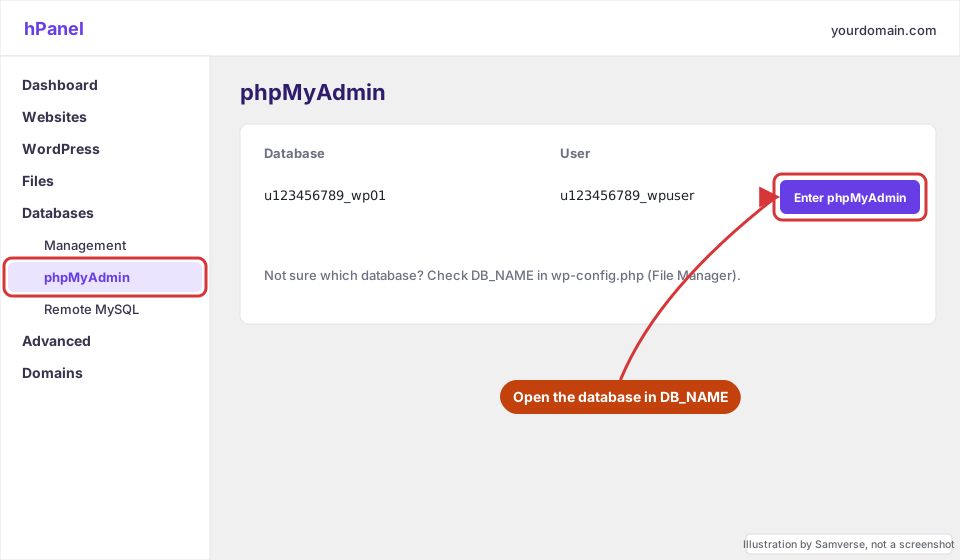
Step 4: Edit your user in the users table
Where: phpMyAdmin > your database > wp_users (or yourprefix_users) > Browse
- In the left tree, click the users table with your prefix.
- On the Browse tab, find your row by
user_loginoruser_email. - Click Edit on that row.
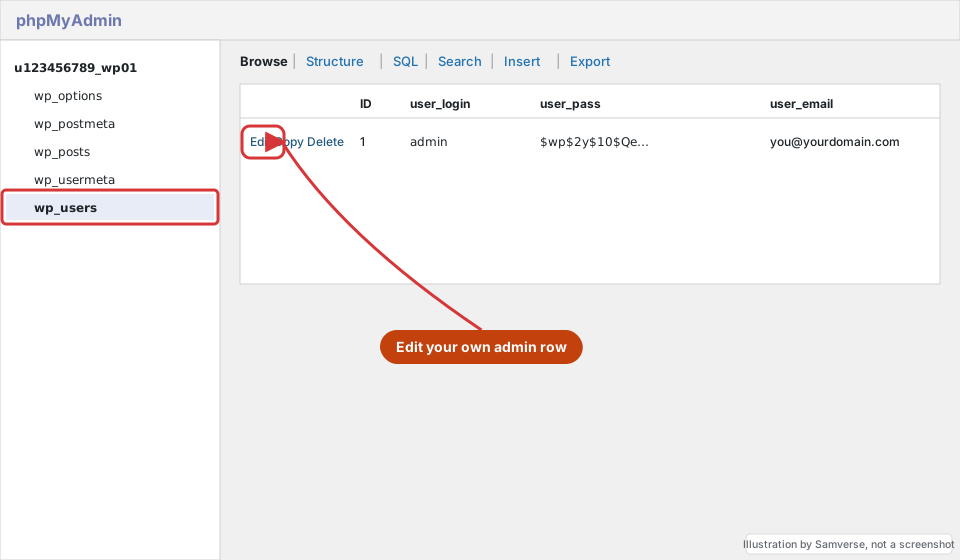
If you do not recognise any administrator accounts, stop: that can be a sign of a hacked site. See signs your WordPress site is hacked.
Step 5: Set the new password with MD5
Where: Edit row screen > user_pass row
- In the user_pass row, set Function to MD5.
- In Value, delete the existing hash and type your new password in plain text. Use a long, unique password.
- Leave every other field alone and click Go.
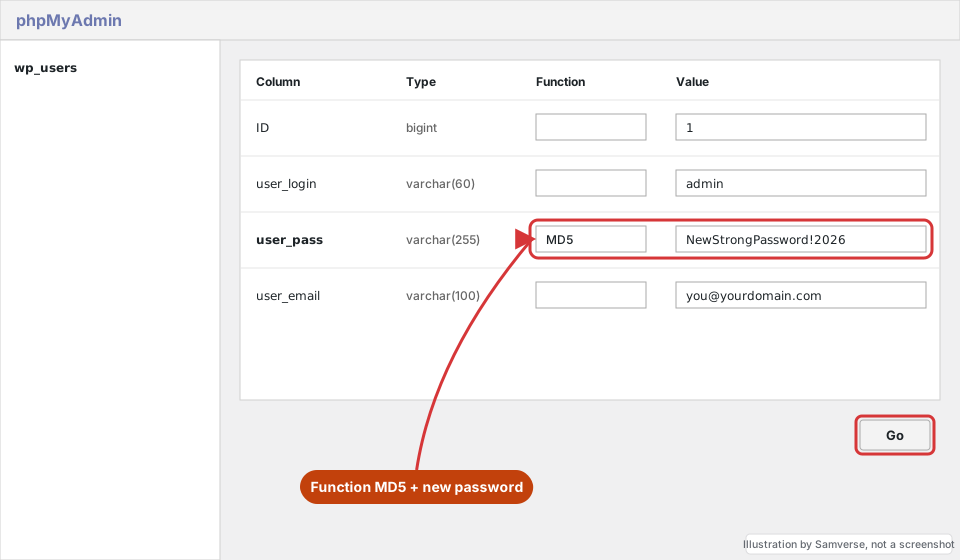
MD5 is only a temporary stand-in. On your first successful login WordPress rehashes the password with its modern, much stronger hashing, so you are not left with a weak MD5 hash.
Step 6: Log in and secure the account
- Go to
yourdomain.com/wp-login.phpand log in with the new password. - In Users > Profile, confirm your email address is current, so future resets reach you.
- In Settings > General, check the Administration Email Address.
- Remove administrator accounts nobody uses, and turn on two-factor login (see how to secure the WordPress login).
Alternative: WP-CLI
If your host offers SSH (Hostinger: Advanced > SSH Access), one command does the same job safely: wp user update admin --user_pass="NewStrongPassword", run from the site folder. Replace admin with your username or user ID.
Other ways to get back in
phpMyAdmin is the most universal method, but depending on what you can access, one of these may be quicker:
- Your host's WordPress tools. Many managed panels have a WordPress section with a one-click login or a password change for the admin user. In Hostinger, look under Websites > your site > WordPress for the admin login and dashboard tools.
- Another administrator. If a colleague or agency still has an admin login, they can go to Users > All Users, edit your account and click Set New Password. This is the safest route.
- Create a temporary admin. A developer can add a new administrator through WP-CLI (
wp user create) and delete it after you are back in. - Fix email, then use Lost your password. If the only problem is that reset emails do not arrive, setting up SMTP solves this and every other email problem at once.
If none of these are possible because you do not have hosting access either, the problem is account ownership rather than passwords. Regaining website access from an old developer covers how to get the hosting, domain and admin logins transferred to you, and which ones you should always hold in your own name.
Troubleshooting
- New password is rejected: you edited the wrong database or table prefix, or a caching/security plugin is limiting login attempts. Check
DB_NAMEand the prefix again. - Login page redirects back to itself: clear browser cookies for the site, and check the site URL in
wp_options(siteurl and home) matches your real address. - Login works but you are not an admin: the account's role was changed. That lives in the
usermetatable; ask a developer rather than guessing.
FAQs
Is it safe to reset a WordPress password in phpMyAdmin?
Yes, if you change only the user_pass field and have a backup. The MD5 value is replaced by a strong hash the first time you log in.
Why is my WordPress password reset email not arriving?
Usually the site has no working email setup, or the admin email is old. Fix email with SMTP and update the address once you are back in.
Can I reset the WordPress password without hosting access?
Only through the Lost your password email. Without email or hosting access you need whoever controls the hosting account.
Stuck on a step?
Tell me where you got stuck and I'll reply with a plan and a fixed quote, usually within 24 hours.