How to Change WordPress Permalinks: Step-by-Step (2026)
Change WordPress permalinks to Post name without losing traffic: back up, switch in Settings > Permalinks, edit slugs, add 301 redirects and re-submit.

On this page
- Step 1: Decide whether to change at all
- Step 2: Back up and export your current URLs
- Step 3: Choose Post name in Settings > Permalinks
- Step 4: Tidy individual slugs
- Step 5: Redirect the old URL pattern
- Step 6: Update internal links, sitemap and Search Console
- Category and tag bases, and other URL settings
- Troubleshooting
- FAQs
To change WordPress permalinks, go to Settings > Permalinks, choose Post name (/%postname%/) and click Save Changes. On a new site that is all. On a site that already has traffic, take a backup first, add 301 redirects from the old URL pattern to the new one, update internal links, and re-submit your sitemap in Search Console.
Time required: 10 minutes on a new site; 1 to 2 hours on an established site with redirects and checks
What you'll need:
- WordPress admin access
- A backup of the site
- For established sites: a list of your top URLs from Search Console
- The Redirection plugin (or your SEO plugin's redirect tool)
Changing one post's slug is different from changing the whole structure; both are covered below. For how URLs fit into on-page SEO, see the on-page SEO checklist.
Step 1: Decide whether to change at all
On a brand-new site, switch to Post name before you publish. On an established site, change only if the current structure is genuinely poor (/?p=123, or long dated URLs for evergreen content). If your URLs are already readable, leave them: every change resets some signals while Google processes the redirects, and pages can dip for a few weeks.
Step 2: Back up and export your current URLs
- Take a full backup (files and database). See the backup and restore guide.
- Save a copy of your current sitemap (usually
/sitemap_index.xmlor/wp-sitemap.xml) and export your top pages from Search Console's Performance report. These are the URLs you will test later.
Step 3: Choose Post name in Settings > Permalinks
Where: WordPress admin > Settings > Permalinks
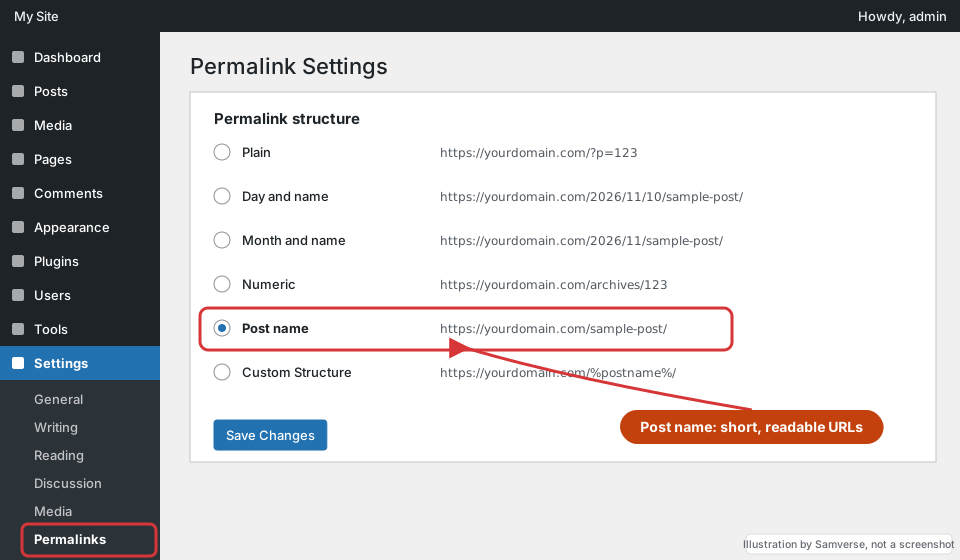
- Open Settings > Permalinks.
- Under Permalink structure, select Post name. It shows a preview such as
https://yourdomain.com/sample-post/. - Leave the optional category and tag bases empty unless you have a reason to change them.
- Click Save Changes. WordPress rewrites its URL rules immediately.
If you get 404 errors on every page after saving, WordPress could not write its rewrite rules. Click Save Changes once more; if that fails, your host needs to allow .htaccess rewrites (or, on Nginx, add the WordPress rewrite rule).
Step 4: Tidy individual slugs
Where: Posts > edit a post > Post sidebar > Slug (or URL)
With Post name on, each URL is the post's slug. Shorten long auto-generated slugs to the main words, for example website-cost rather than how-much-does-a-website-cost-in-2026-complete-guide.
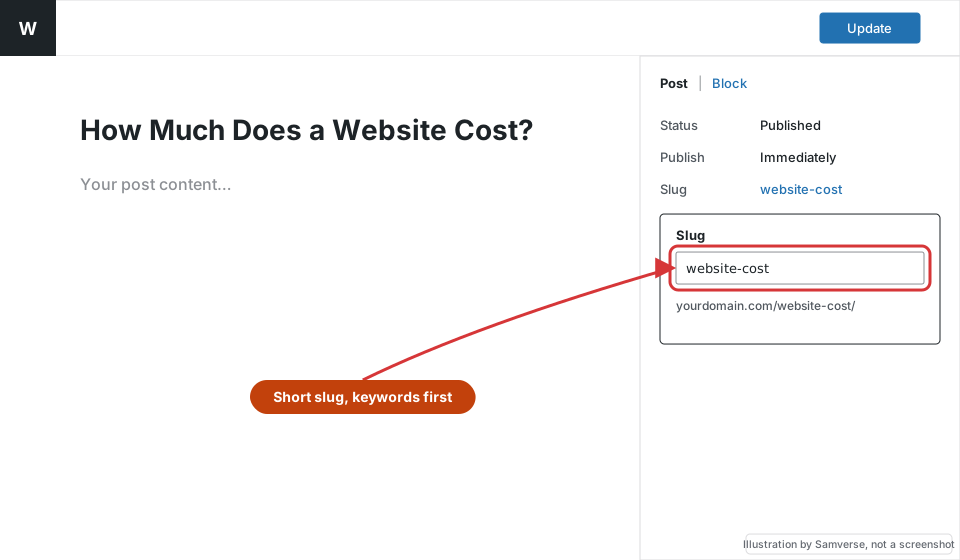
WordPress remembers a published post's old slug and redirects it automatically in most cases, and the Redirection plugin (with Monitor permalink changes on) adds a proper 301 as well. Even so, only change slugs on pages that matter if you have a clear reason.
Step 5: Redirect the old URL pattern
Where: Tools > Redirection > Add new redirection (Regex)
WordPress sometimes guesses the new address for an old dated URL, but do not rely on it. Add one regex 301 redirect instead. For a Day and name structure, the source ^/\d{4}/\d{2}/\d{2}/(.*)$ with target /$1 covers every post. The full steps are in the tutorial on how to add 301 redirects in WordPress.
Then test five or six old URLs from your export: each should reach the new URL in a single 301 hop.
Step 6: Update internal links, sitemap and Search Console
Where: Google Search Console > URL inspection and Sitemaps
- Update menus and important internal links to the new URLs. A search-and-replace plugin can update old URLs inside post content; back up first. See internal linking explained for why direct links beat chains of redirects.
- Purge your cache plugin and CDN.
- In Search Console, submit your sitemap again under Sitemaps.
- Use URL inspection on your top five new URLs, click Test live URL, then Request indexing.
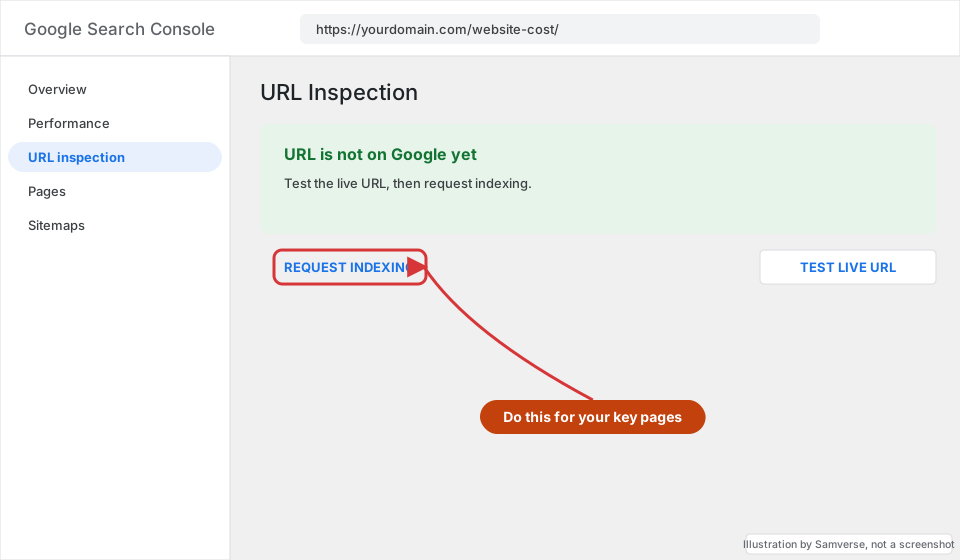
Watch the Pages report for "Not found (404)" over the next few weeks and redirect anything you missed.
Category and tag bases, and other URL settings
Settings > Permalinks has a few more options that affect URLs. Most sites should leave them as they are:
- Category base and Tag base: empty means WordPress uses
/category/and/tag/. Changing them changes every archive URL, which then needs redirects too. - Including the category in post URLs (
/%category%/%postname%/): it looks organised, but the URL changes whenever you recategorise a post, and posts in several categories can be confusing. Post name alone is easier to maintain. - Trailing slashes: WordPress adds them for you with these structures. Keep internal links consistent with that (with the slash) so you do not create redirects on every click.
- Product permalinks (WooCommerce): the shop base and product category base are set further down the same page. On an existing store, treat a change here as seriously as changing post permalinks.
Pages (as opposed to posts) always use their slug and parent page, for example /services/web-design/, whatever structure you choose. To change a page's URL, change its slug or its parent in the page settings. Plan the page hierarchy with your menu, as described in planning website navigation.
Troubleshooting
- Every page shows 404 after the change: rewrite rules were not saved. Save permalinks again, check .htaccess is writable, or ask your host.
- Old URLs show the homepage: a plugin is redirecting all 404s to the homepage. Turn that off and use proper one-to-one redirects.
- Redirect chains: an old redirect points to another redirect. Update the first one to point straight at the final URL.
- WooCommerce product URLs did not change: products use their own base, set in the Product permalinks section on the same Settings > Permalinks page.
FAQs
What is the best permalink structure for WordPress?
Post name (/%postname%/) suits most business sites and blogs: short, readable and not tied to a date.
Will changing WordPress permalinks hurt SEO?
There is usually a temporary dip on an established site. With 301 redirects from every old URL and updated internal links, rankings normally settle on the new URLs.
How do I change the permalink of a single page in WordPress?
Edit the page, open the Page settings sidebar, change the Slug (or URL) field and update. Add a 301 from the old URL if the page was already indexed.
Stuck on a step?
Tell me where you got stuck and I'll reply with a plan and a fixed quote, usually within 24 hours.