How to Add a Favicon in WordPress: Step-by-Step (2026)
Add a favicon in WordPress: make a 512x512 square icon, upload it as the Site Icon, publish, then check it in browser tabs and on mobile.

On this page
To add a favicon in WordPress, make a square PNG at least 512 x 512 pixels, then go to Appearance > Customize > Site Identity > Site Icon (classic themes) and click Select site icon, upload it, crop and Publish. On block themes, set it in Settings > General or the Site Logo block settings. WordPress then creates the sizes browsers and phones need.
Time required: 10 minutes
What you'll need:
- Your logo or brand mark as a PNG or SVG
- WordPress admin access
- An image editor (or a free online resizer)
For which file format and design work best at tiny sizes, see logo, favicon and brand basics.
Step 1: Prepare a square icon
- Use a simple mark, not the full logo with small text: at 16 pixels text becomes a blur.
- Make it square, 512 x 512 pixels, PNG with a transparent or solid background.
- Leave a little padding so the mark is not cut off in round icons on phones.
Use the image resizer to get it to 512 x 512, and the favicon size checker to confirm it.
Step 2: Open Site Identity in the Customizer
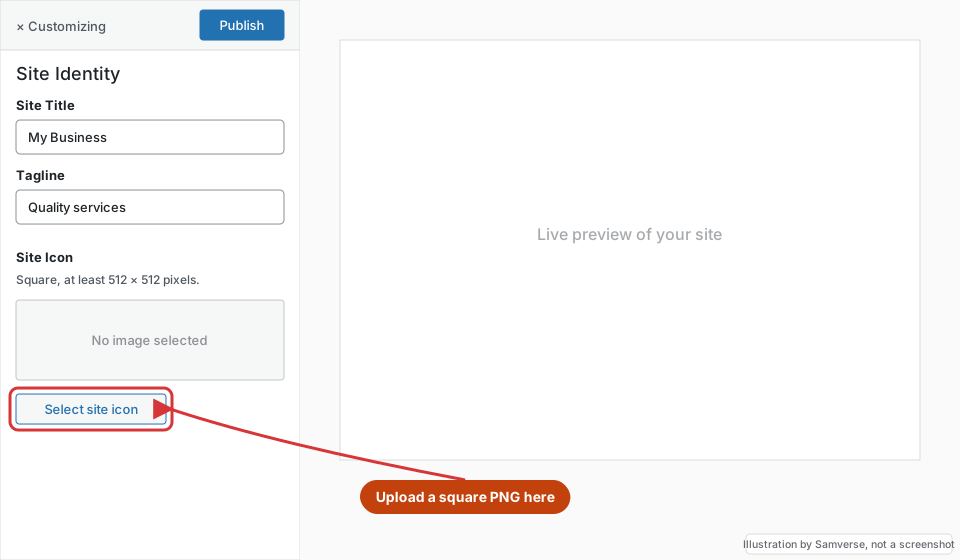
Where: WordPress admin > Appearance > Customize > Site Identity
- Go to Appearance > Customize.
- Click Site Identity.
- Scroll to Site Icon and click Select site icon.
Using a block theme such as Twenty Twenty-Five, there is no Customize menu. Go to Settings > General and use Site Icon there, or open Appearance > Editor, select the Site Logo block and turn on Use as site icon.
Step 3: Upload and crop the icon
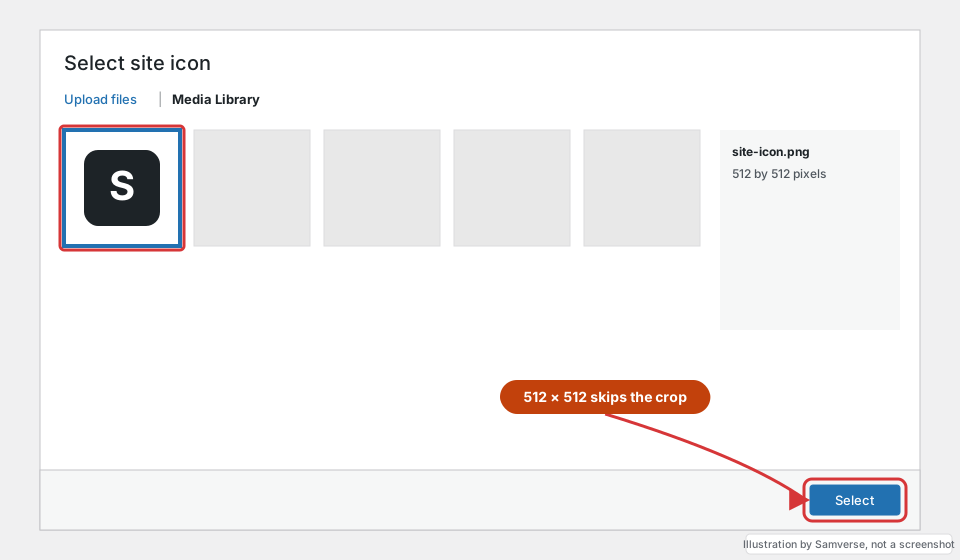
- In the media window, click Upload files and choose your 512 x 512 PNG.
- Click Select. If the image is not square, WordPress asks you to crop it; keep the mark centred.
Step 4: Check the preview and publish
Where: Customizer > Site Identity > Site Icon preview
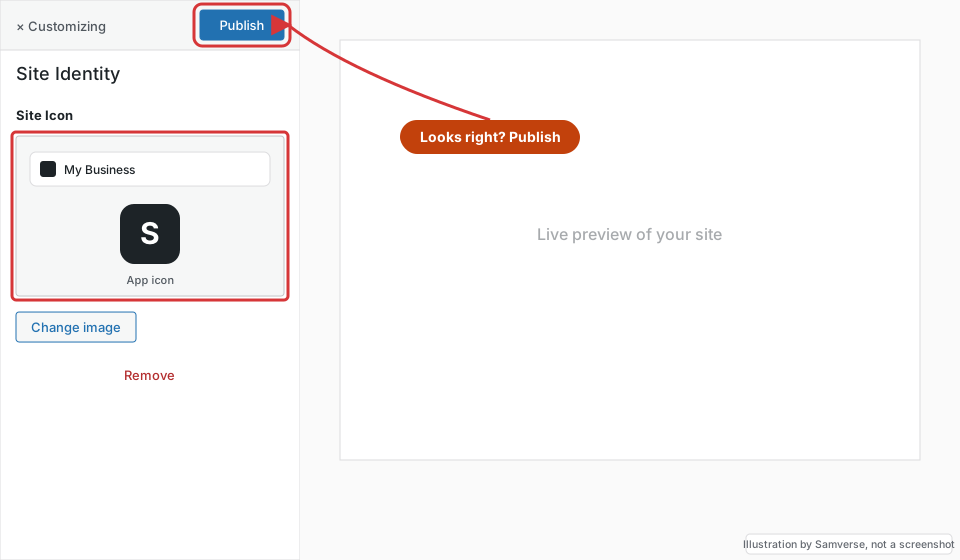
The panel previews the icon in a browser tab and as an app icon. If it looks right, click Publish at the top.
Step 5: Clear caches and test
- Clear your caching plugin, host cache and CDN.
- Open the site in a private window and look at the tab.
- On a phone, use Add to Home Screen to check the larger icon.
Browsers cache favicons stubbornly. If you still see the old one, try another browser before assuming it failed.
Step 6: Remove old favicon code
If a theme option, SEO plugin or a hard-coded <link rel="icon"> in header.php also sets a favicon, the page may output two. View the page source and search for rel="icon"; keep only the WordPress Site Icon ones.
Troubleshooting
- Old icon still shows: browser cache. Test in a private window or another browser, and clear site caches.
- Google search shows the wrong icon: Google updates favicons in results on its own schedule after recrawling the homepage. Make sure the icon is a multiple of 48 pixels square (512 works) and not blocked by robots.txt.
- No Site Icon option: some themes hide it. Use Settings > General on recent WordPress versions, or check the theme's own options panel.
- Icon looks blurry: the source was too small. Upload a fresh 512 x 512 file.
FAQs
What size should a WordPress favicon be?
Upload a square image of at least 512 x 512 pixels. WordPress generates the smaller sizes (such as 32 x 32 and 180 x 180) automatically.
Can I use an SVG or ICO file as the WordPress site icon?
The Site Icon setting expects an image WordPress can crop, so PNG or JPG is the safe choice. SVG and ICO need a plugin or manual code.
Do I need a favicon plugin?
No. The built-in Site Icon setting covers browsers, Android and iOS for most sites.
Stuck on a step?
Tell me where you got stuck and I'll reply with a plan and a fixed quote, usually within 24 hours.