How to Put WordPress in Maintenance Mode (2026)
Put WordPress in maintenance mode or show a coming soon page: install a free plugin, design the page, turn it on, check it logged out, then switch it off.

On this page
To put WordPress in maintenance mode, install a free maintenance plugin such as LightStart (formerly WP Maintenance Mode), set the status to Activated, choose Maintenance (or Coming Soon for a site not yet launched), edit the message, save, and check the site in a logged-out window. Visitors see the page while you, as a logged-in admin, still see and work on the real site.
Time required: 15 to 20 minutes
What you'll need:
- WordPress admin access
- Your logo and a short message for visitors
- A contact email or WhatsApp number to show on the page
This is different from the automatic "Briefly unavailable for scheduled maintenance" message during updates; if that one is stuck, see WordPress stuck in maintenance mode.
Step 1: Decide if you need it
For updates and design changes, a staging copy is better: you work on the copy and the live site never goes down. Use maintenance mode for short jobs on the live site, for a site that is not launched yet (coming soon), or when you must stop orders for a while.
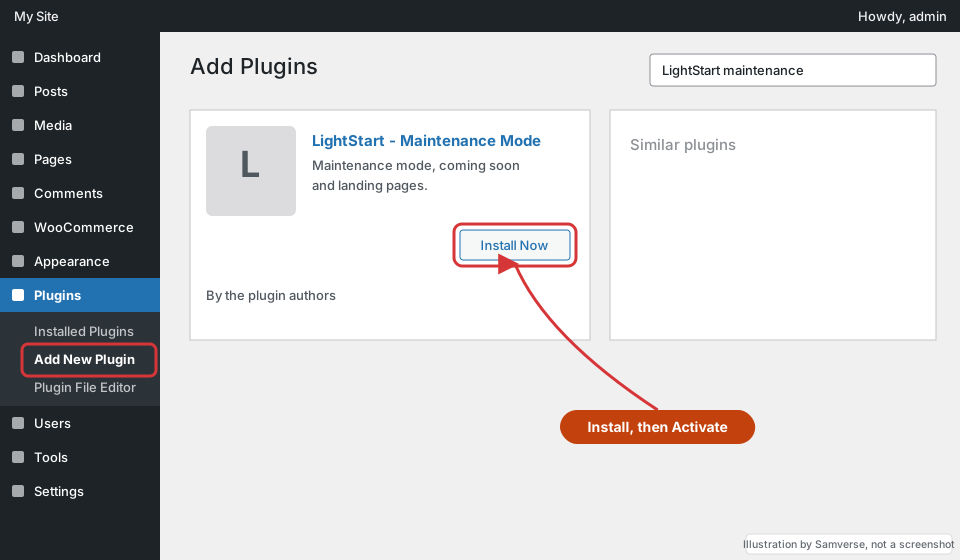
Step 2: Install the maintenance plugin
Where: WordPress admin > Plugins > Add New Plugin
- Search for LightStart or WP Maintenance Mode.
- Install and activate LightStart - Maintenance Mode, Coming Soon and Landing Page Builder.
Step 3: Set status and mode
Where: WordPress admin > Settings > LightStart > General
- Set Status to Activated.
- Choose Maintenance for a live site, or Coming soon for a new one.
- Leave Bypass for search bots off, and keep administrators in the roles that can see the site.
- Click Save settings.
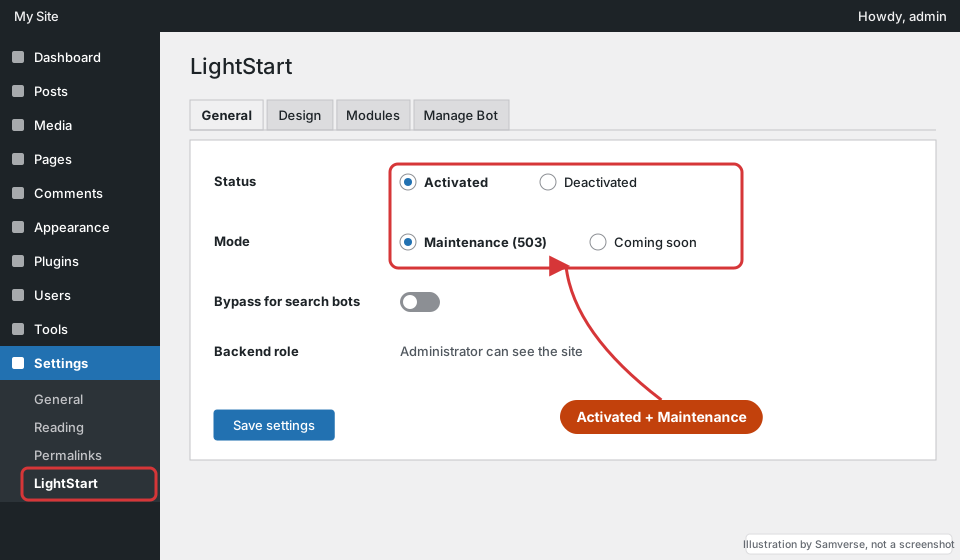
In maintenance mode the plugin returns a 503 status, which tells Google the outage is temporary so it does not drop your pages. Keep it short: hours, not weeks.
Step 4: Edit the page
Where: Settings > LightStart > Design
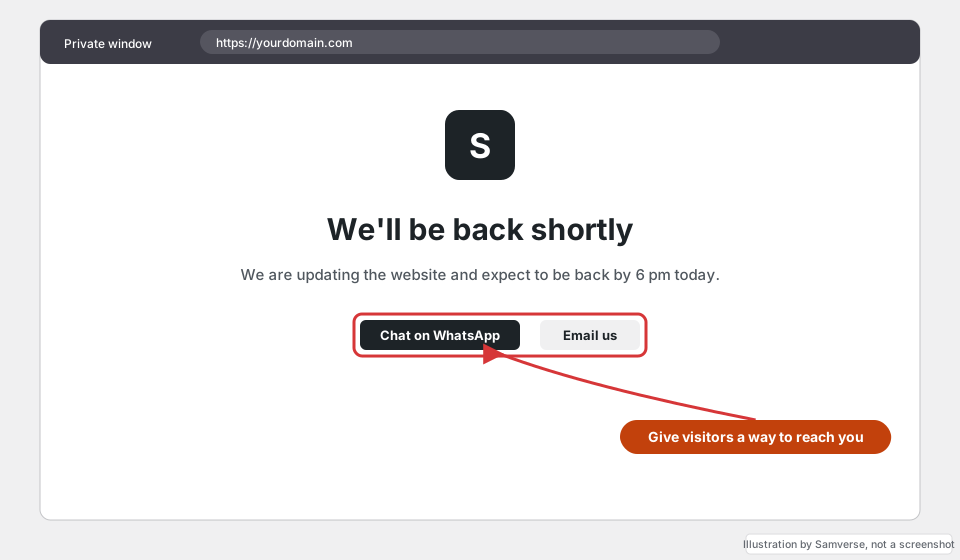
- Add your logo, a clear heading such as "We'll be back shortly" and when you expect to be back.
- Add a way to reach you: phone, email or a WhatsApp link (the WhatsApp link generator makes one).
- Keep it light and fast: one image at most.
Step 5: Check it logged out
Open the site in a private window or on your phone's mobile data. You should see the maintenance page. In your normal browser, where you are logged in, you still see the real site; that is expected.
Step 6: Turn it off and clear caches
- When the work is done, set Status to Deactivated and save.
- Clear your caching plugin, host cache and CDN, or some visitors keep seeing the maintenance page.
- Check the homepage, a key page and the checkout in a private window.
Troubleshooting
- Visitors still see the maintenance page after switching off: a cache is serving the old page. Purge all caches, including Cloudflare.
- You see the maintenance page while logged in: your role is not in the bypass list, or you are logged in on a different address (www vs non-www).
- Payment gateway or webhooks stop working: some plugins block webhook URLs too. Exclude them in the plugin's settings, or avoid maintenance mode on a live shop.
- Locked out: rename the plugin's folder in
wp-content/pluginsby FTP or File Manager to switch it off.
FAQs
Can I put WordPress in maintenance mode without a plugin?
Yes, with a small code snippet that shows a message to logged-out users and returns a 503, but a plugin is easier to turn on and off safely.
Does maintenance mode hurt SEO?
Not for a short time, as long as the page returns a 503 status. Leaving it on for weeks can lead Google to drop pages.
What is the difference between maintenance mode and coming soon mode?
Maintenance mode is for an existing site that is temporarily unavailable (503 status). Coming soon is for a site that has not launched yet and usually returns a normal 200 status.
Stuck on a step?
Tell me where you got stuck and I'll reply with a plan and a fixed quote, usually within 24 hours.