How to Enable COD on Shopify in India: Step-by-Step (2026)
Enable Cash on Delivery on Shopify in India: add the COD manual payment method in Settings > Payments, write checkout instructions, test it and cut RTO.

On this page
To enable Cash on Delivery on Shopify, go to Settings > Payments, find Manual payment methods, click + Manual payment method, choose Cash on Delivery (COD), add the details customers see at checkout, and click Activate. COD then appears next to your online gateway at checkout.
Time required: 10 to 15 minutes
What you'll need:
- A Shopify store with Settings access (owner or staff with payments permission)
- Your courier or shipping aggregator already supporting COD collection for your pincodes
- Your COD rules decided: any order limits, fees or areas you will not serve
COD is still expected by many Indian shoppers, but it brings returned-to-origin (RTO) costs. This tutorial covers switching it on and the settings that keep it under control. The WooCommerce version is in cash on delivery on WooCommerce in India.
Step 1: Confirm your courier can collect COD
Shopify only shows the COD option; the cash is collected by your courier or shipping aggregator and remitted to you. Before you switch it on, check in your shipping account that COD is enabled, which pincodes are serviceable for COD, and how often remittances are paid. Turning on COD for areas your courier cannot serve leads to cancelled orders.
Step 2: Open Manual payment methods
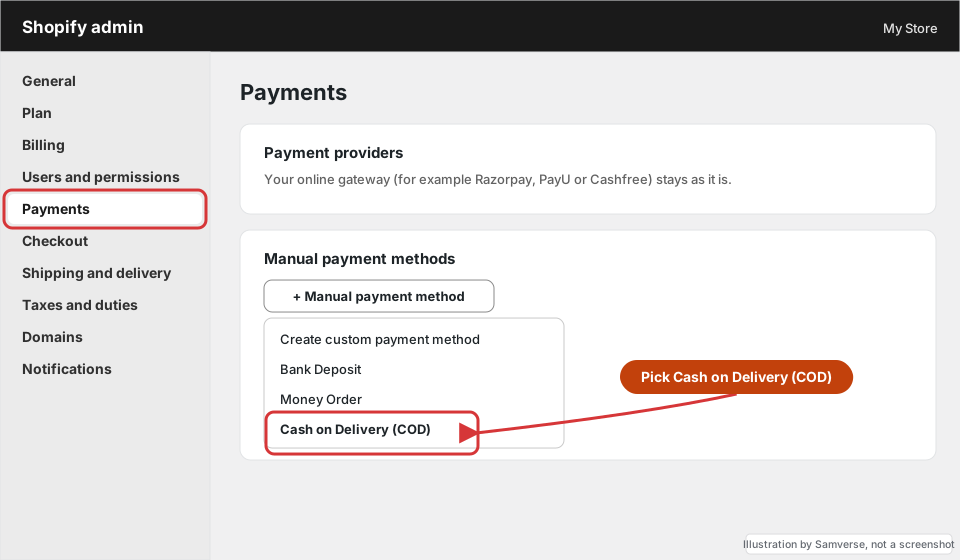
Where: Shopify admin > Settings > Payments > Manual payment methods
- In Shopify admin, click Settings, then Payments.
- Leave your online provider (Razorpay, PayU, Cashfree, PhonePe and so on) as it is.
- Scroll to Manual payment methods and click + Manual payment method.
- Choose Cash on Delivery (COD) from the list.
Step 3: Write the checkout details and activate
Where: Cash on Delivery (COD) setup panel
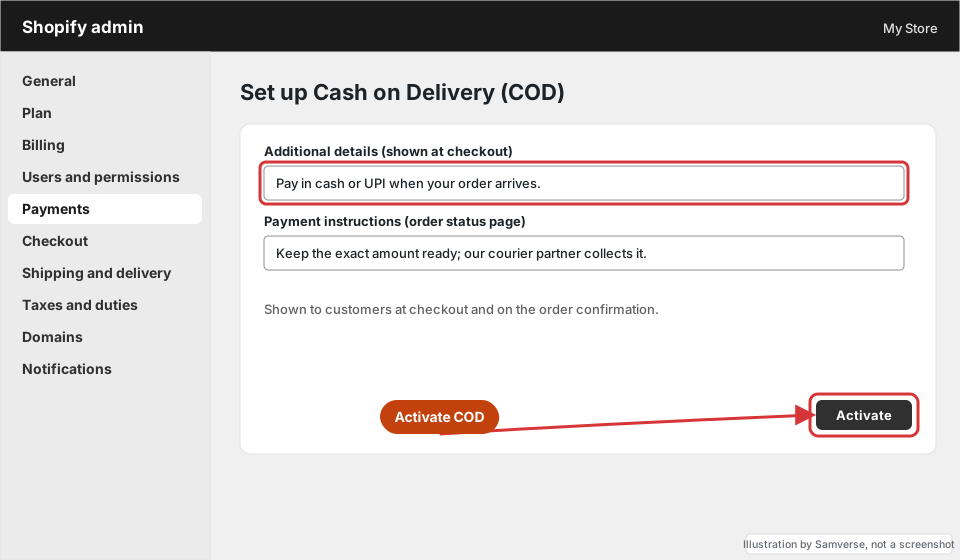
- Additional details: one short line shown under the COD option at checkout, for example "Pay in cash or UPI when your order arrives."
- Payment instructions: shown on the order status page and in the confirmation email, for example delivery timelines and that the courier collects the amount.
- Click Activate Cash on Delivery (COD).
Only promise "UPI on delivery" if your courier actually offers it in your areas.
Step 4: Place a test COD order
Where: Your storefront checkout, then Shopify admin > Orders
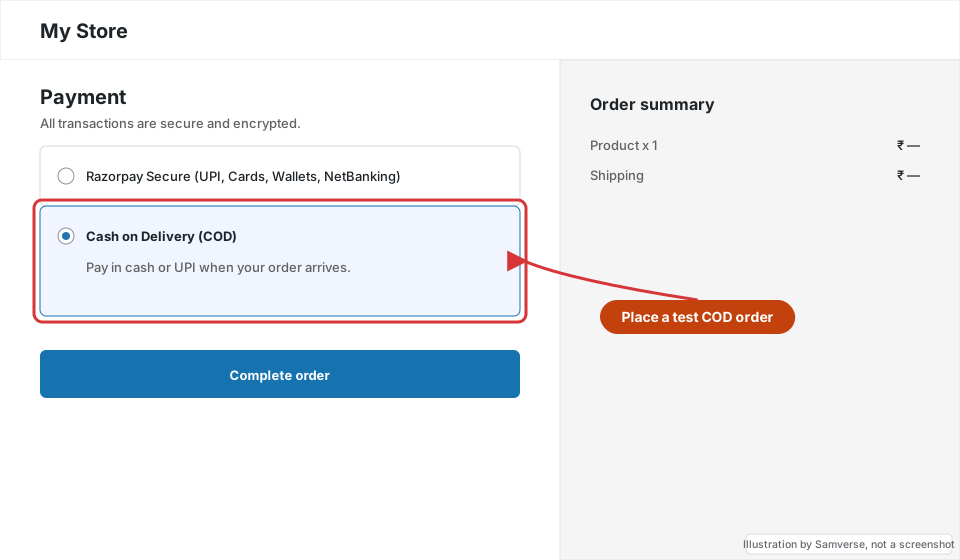
- Open your store in a private window, add a product and go to checkout.
- Select Cash on Delivery (COD) and complete the order.
- In Orders, the order shows payment status Payment pending. That is correct for COD.
- Check the confirmation email shows your payment instructions, then cancel the test order.
Step 5: Mark COD orders as paid after delivery
When the courier remits the cash, open each order and click Collect payment > Mark as paid (or let your shipping app do it automatically if it supports that). Keeping this up to date makes your sales reports and GST records match what you actually received. For invoices, see GST invoices for online stores in India; the same GST rules apply on Shopify.
Step 6: Reduce fake orders and RTO
Shopify's built-in COD option has no limits of its own: it is on for every order. Common controls Indian stores add:
- Hide COD above an order value or for some pincodes with a payment customisation app from the Shopify App Store.
- Confirm COD orders by WhatsApp or call before shipping. Several apps automate this.
- Prepaid nudges: a small prepaid discount or free shipping on prepaid orders, set up with discounts in Shopify.
- A COD fee: Shopify does not add one natively; it needs an app. Be transparent about it before checkout.
Test checkout again after installing any of these, because payment apps can conflict with each other.
Write COD terms customers can find
COD disputes usually come from unclear expectations, not from the setting itself. Add a short COD section to your shipping policy (Settings > Policies) and link it from the product page or cart:
- Where COD is available. Say that COD depends on the delivery pincode, if that is true for your courier.
- How customers can pay. Cash only, or cash and UPI at the door, as your courier actually supports.
- Any limits or fees. If you hide COD above an order value or add a fee through an app, state it plainly before checkout.
- What happens on refusal. Explain your policy for orders refused at the door, and whether repeat refusals lose COD access.
- Returns and refunds for COD orders. Since there is no card or UPI payment to reverse, say how refunds are paid (for example to a bank account or UPI ID the customer provides).
Keep the same wording in your COD "Payment instructions" and the order confirmation email so the message is consistent. Clear terms also help if you later apply for a payment gateway or marketplace account, which often review your policy pages. For more on product pages that answer these questions up front, see product page optimisation; the same principles apply on Shopify.
Troubleshooting
- COD not showing at checkout: check it is active in Settings > Payments, and that no payment customisation app is hiding it for your test cart or address.
- COD shows for international customers: use a payment customisation to limit it to India, or check your markets settings.
- Orders stay "Payment pending" forever: mark them paid after remittance, or connect your shipping app's COD reconciliation.
FAQs
Is cash on delivery available on Shopify in India?
Yes. Cash on Delivery (COD) is a built-in manual payment method in Shopify, available on all plans. The courier collects the money.
Does Shopify charge transaction fees on COD orders?
Shopify's policy on transaction fees for manual payment methods depends on your plan and payment setup; check the current terms in your Shopify plan and billing settings.
Can I limit COD by order value on Shopify?
Not with the built-in option alone. Use a payment customisation app to hide COD above a value or for certain pincodes.
Stuck on a step?
Tell me where you got stuck and I'll reply with a plan and a fixed quote, usually within 24 hours.