How to Back Up WordPress with UpdraftPlus (2026)
Back up WordPress with UpdraftPlus: install the free plugin, set file and database schedules, connect Google Drive, run the first backup, test a restore.

On this page
To back up WordPress with UpdraftPlus, install the free UpdraftPlus plugin, open Settings > UpdraftPlus Backups > Settings, set schedules for files and the database, choose remote storage such as Google Drive and authorise it, save, then click Backup Now. Backups then run on schedule and are stored off the server.
Time required: 15 to 20 minutes, plus the first backup run
What you'll need:
- WordPress admin access
- A Google Drive (or Dropbox) account that the business owns
- Enough free space in that account for a few copies of the site
Not sure UpdraftPlus is right for you? See WordPress backup plugins compared.
Step 1: Install UpdraftPlus
Where: WordPress admin > Plugins > Add New Plugin
- Search for UpdraftPlus.
- Install and activate UpdraftPlus: WP Backup & Migration Plugin.
- Open Settings > UpdraftPlus Backups. Close the welcome tour if it appears.
Step 2: Set the backup schedules
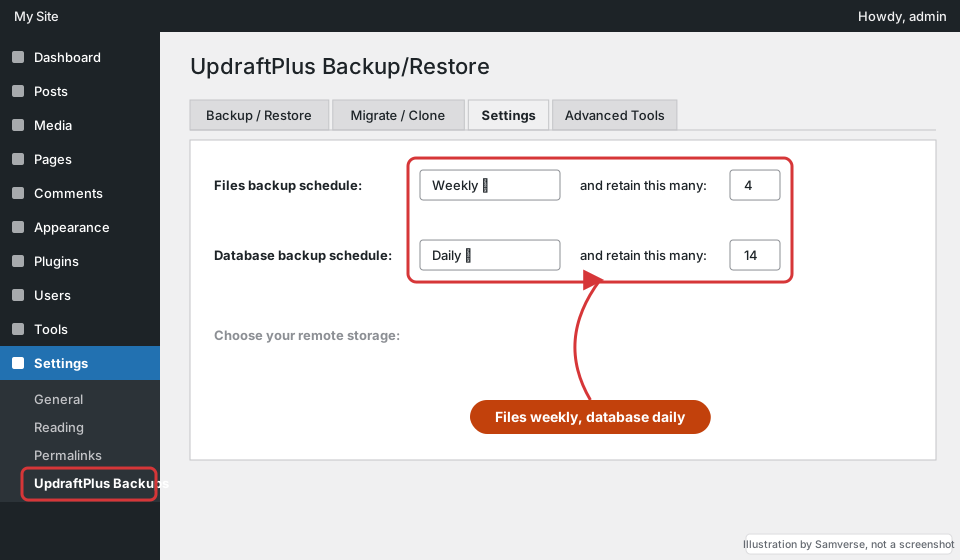
Where: Settings > UpdraftPlus Backups > Settings tab
- Files backup schedule: Weekly suits most brochure sites. Retain 4.
- Database backup schedule: Daily for shops, blogs and sites with forms. Retain 14.
- If you take orders every hour, ask your host about more frequent database backups too.
Step 3: Choose remote storage and authorise it
Where: Settings tab > Choose your remote storage
- Click Google Drive (or Dropbox, OneDrive, S3).
- Scroll down and click Save Changes. A popup asks you to authorise.
- Sign in with the business Google account, allow access, then click Complete setup.
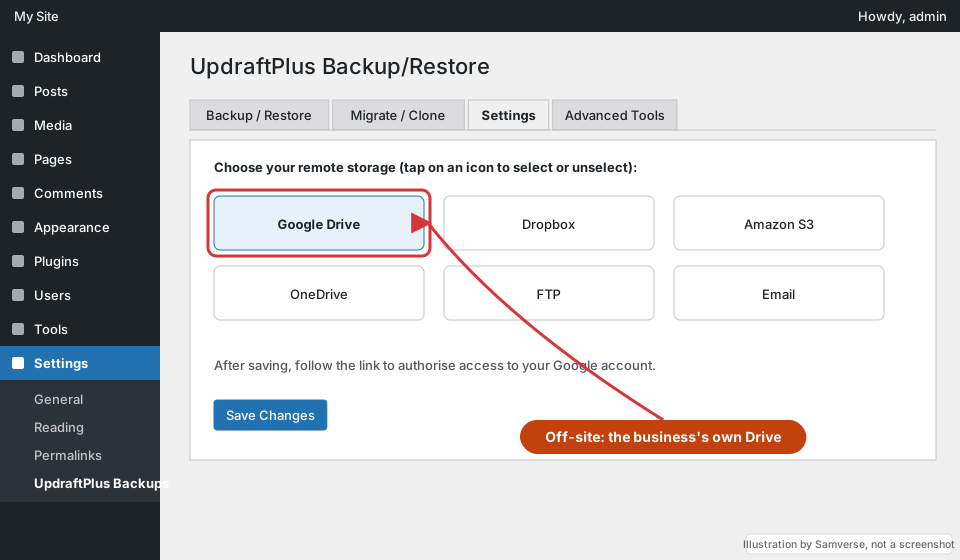
Use an account the business owns, not a developer's personal Drive, so access survives a change of developer.
Step 4: Choose what to include
Leave Plugins, Themes, Uploads and Others ticked. If you have large folders that are not needed (old backup zips from other plugins, cache folders), add them to the exclude list so backups stay small.
Step 5: Run the first backup
Where: Settings > UpdraftPlus Backups > Backup / Restore tab
- Click Backup Now.
- Keep Include your database, Include your files and Send this backup to remote storage ticked.
- Click Backup Now in the dialog and wait. It shows progress and then lists the backup under Existing backups.
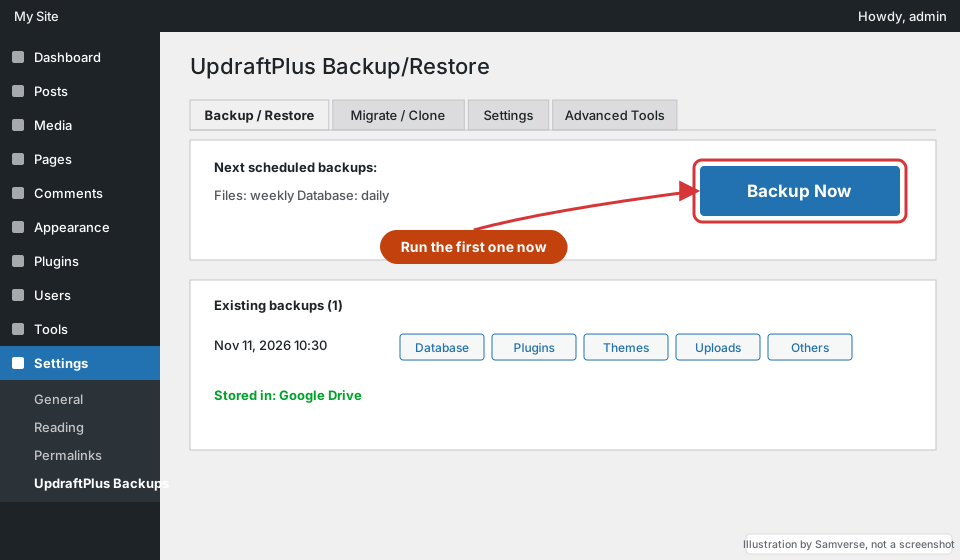
Step 6: Check the files reached Google Drive
Open Google Drive and find the UpdraftPlus folder. You should see a database file and several zip files (plugins, themes, uploads, others) with today's date.
Step 7: Test a restore
A backup is only proven when it restores. Restore it on a staging copy or a test install, not on the live site: in Existing backups click Restore, choose the components and follow the steps. Repeat the test every few months and after big changes.
Troubleshooting
- Backup stuck or never finishes: WordPress cron is not running because the site gets few visits. Set a real server cron job, or ask your host.
- Google Drive upload fails: re-authorise in Settings, and check the Drive account has free space.
- Backups are huge: exclude cache folders and old backup files, and compress images.
- "Insufficient permissions" or timeouts: look in the log (Backup / Restore tab > View log) for the exact error.
FAQs
Is UpdraftPlus free?
Yes, the core plugin with scheduled backups to Google Drive, Dropbox and others is free. A paid version adds features such as incremental backups and more storage options.
Do I still need UpdraftPlus if my host takes backups?
It is a sensible second copy. Host backups sit with the same company as the site; a plugin copy in your own Drive is independent.
How do I restore WordPress from UpdraftPlus?
In Settings > UpdraftPlus Backups, open the Backup / Restore tab, click Restore on the backup set, tick the components and follow the prompts. If the site will not load, install a fresh WordPress, add UpdraftPlus, connect the same Drive and restore from there.
Stuck on a step?
Tell me where you got stuck and I'll reply with a plan and a fixed quote, usually within 24 hours.