How to Add a WhatsApp Button to WordPress (2026)
Add a WhatsApp chat button to WordPress: install Click to Chat, add your number in international format, set a pre-filled message, test, track clicks.

On this page
To add a WhatsApp button to WordPress, install the free Click to Chat plugin, go to Click to Chat > Settings, enter your number in international format with the country code (for example 919876543210), add a pre-filled message, pick a style and position, save, and test on your phone. The button opens a chat with you in WhatsApp on mobile or WhatsApp Web on desktop.
Time required: 15 minutes
What you'll need:
- WordPress admin access
- The WhatsApp or WhatsApp Business number you want enquiries on
- A short pre-filled message, for example "Hi, I have a question about your services"
Whether a floating button, a contact-page link or both suits you is covered in WhatsApp on your business website.
Step 1: Get the number in the right format
WhatsApp links need the full number with country code and no plus, spaces, zeros or dashes: 91 then the 10-digit mobile for India, 44 then the number without its leading 0 for the UK, 1 for the USA and Canada, 971 for the UAE. Use a number that has WhatsApp Business with a business profile, greeting and away messages set up.
You can build and test the link with the WhatsApp link generator.
Step 2: Install Click to Chat
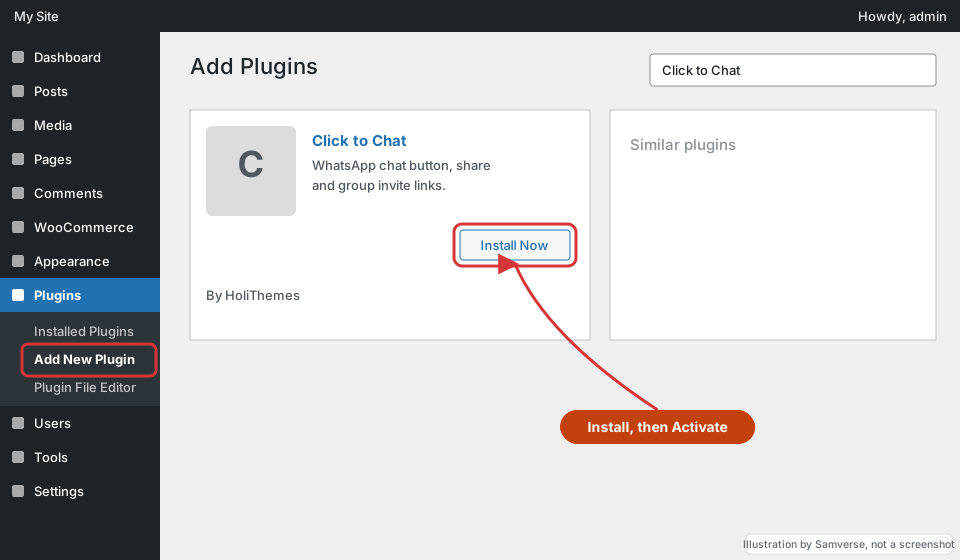
Where: WordPress admin > Plugins > Add New Plugin
- Search for Click to Chat.
- Install and activate Click to Chat - HoliThemes.
Step 3: Add your number and pre-filled message
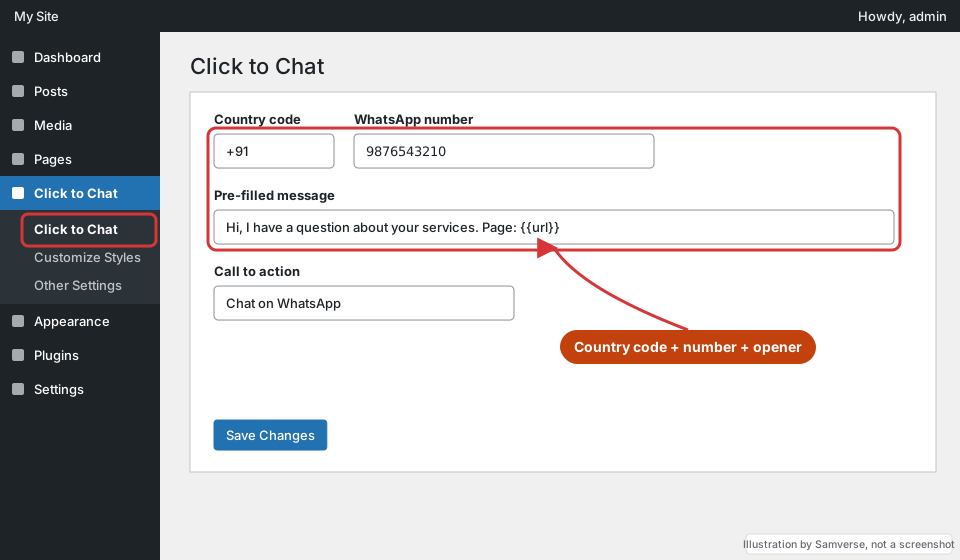
Where: WordPress admin > Click to Chat > Settings
- Choose your country code and enter the number.
- In Pre-filled message, write a short opener. You can include
{{url}}so you see which page they came from. - Set Call to action text, for example "Chat on WhatsApp".
Step 4: Choose the style and position
- Pick a style (an icon, or icon with text) that does not cover the cart, cookie banner or chat widgets.
- Bottom right is usual. Leave enough space from the edge on mobile so it does not block the menu.
- Under display settings, hide it on pages where it gets in the way, such as checkout.
Click Save Changes.
Step 5: Test on mobile and desktop
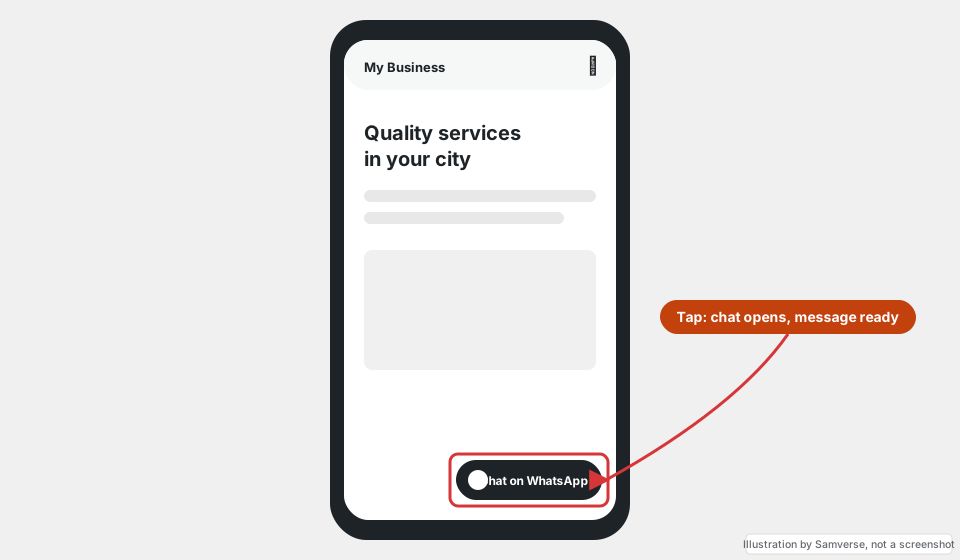
- Open the site on your phone, tap the button: WhatsApp should open with your number and the message ready to send.
- On desktop it should open WhatsApp Web or the desktop app.
- Send a test message from another phone and check it arrives on the business number.
Step 6: Track clicks in GA4
Click to Chat can send an event to Google Analytics when someone taps the button (in its Other Settings > Analytics). Turn it on, then mark that event as a key event in GA4 so WhatsApp enquiries show up next to form leads. Tag WhatsApp links you share elsewhere with the UTM builder if you send people to the site from campaigns.
Step 7: Add it to key pages too
Besides the floating button, add a normal WhatsApp link or button on the contact page and at the end of service pages, using a Button block with the https://wa.me/919876543210 style link.
Troubleshooting
- "Phone number shared via url is invalid": the number has a plus, a leading zero or spaces, or is not on WhatsApp.
- Button does not appear: clear caches, and check the display settings are not hiding it on that page or device.
- Button covers other buttons: change the position offset or style in the plugin settings.
- No events in GA4: check GA4 is installed on the site and look in Realtime while you tap the button.
FAQs
Can I add a WhatsApp button to WordPress without a plugin?
Yes. Add a Button block that links to https://wa.me/yournumber. A plugin is only needed for the floating button on every page.
Does a WhatsApp button slow down my site?
A simple button adds very little. Heavy chat widgets with many scripts can; test with PageSpeed Insights after adding one.
Can I use a WhatsApp Business number?
Yes, and it is recommended: you get a business profile, quick replies and away messages, all free in the WhatsApp Business app.
Stuck on a step?
Tell me where you got stuck and I'll reply with a plan and a fixed quote, usually within 24 hours.