WooCommerce Orders Not Showing? Missing Orders, Paid-but-No-Order and Missing Emails
WooCommerce orders not showing? Check filters and HPOS sync, fix paid-but-no-order gateway callbacks, missing order emails and stuck scheduled tasks.

On this page
- Three different problems that look the same
- WooCommerce orders not showing in admin: quick checks
- HPOS and order sync issues
- Paid but no order: the gateway callback
- Checkout errors that stop orders being created
- Order emails not arriving
- Customers cannot see orders in My Account
- Orders missing from apps, reports and integrations
- Scheduled tasks and stuck statuses
- WooCommerce orders not showing after a migration, restore or update
- Preventing missing orders
- Find a missing WooCommerce order: step by step
- When to get help
- FAQs
- Many "missing" WooCommerce orders are hidden by status filters, pending payment, drafts or HPOS sync settings rather than truly lost.
- Paid-but-no-order problems usually mean the payment gateway callback failed, so compare the gateway dashboard with WooCommerce and check logs.
- Missing order emails are a separate issue, normally fixed with proper SMTP setup and checking the email settings for each order status.
If WooCommerce orders are not showing, first check the order list filters and the "Pending payment" and "Drafts" views, then check whether your store uses HPOS (High-Performance Order Storage) and whether sync is set correctly. If a customer has paid but no order exists, the payment gateway's callback probably failed. If orders exist but nobody received the email, that is an email delivery problem, not a missing order.
This guide separates those three problems and walks through how to fix each.
Short answer: If WooCommerce orders are not showing, clear the order list filters and check the Pending payment and Drafts views, then check the order storage setting under WooCommerce > Settings > Advanced > Features. If a customer paid but no order exists, the gateway callback failed. If orders exist but no email arrived, fix email delivery instead.
Three different problems that look the same
| What you see | Likely problem | Where to look |
|---|---|---|
| Order not in the list, but customer has an order number | Filter, status view, HPOS or caching issue | All order statuses, HPOS settings |
| Customer paid, no order exists at all | Gateway callback failed or checkout error | Gateway dashboard, WooCommerce logs |
| Order exists but no email arrived | Email sending or settings problem | Email settings, SMTP logs |
| Orders visible to admin but not in customer's account | Guest checkout or different email used | Order customer details |
| Order count wrong in reports or apps | Analytics cache or sync delay | WooCommerce Analytics settings |
WooCommerce orders not showing in admin: quick checks
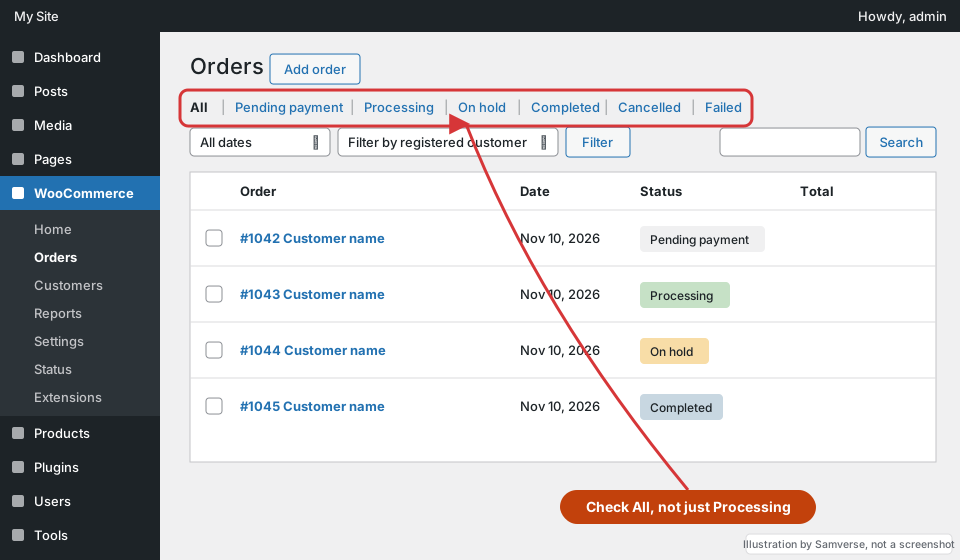
- Check "All" orders, not just Processing. Orders on Pending payment, On hold, Failed or Cancelled are easy to miss.
- Clear filters and search, including date and customer filters left from earlier.
- Check the Drafts or checkout-draft view. The block-based checkout creates draft orders before payment; these are not real orders until completed.
- Search by order number, email and phone.
- Clear the object cache if your host uses Redis or Memcached, and make sure admin pages are not page-cached.
- Check user role: a shop manager account with restricted capabilities, or a plugin that limits order access, can hide orders.
HPOS and order sync issues
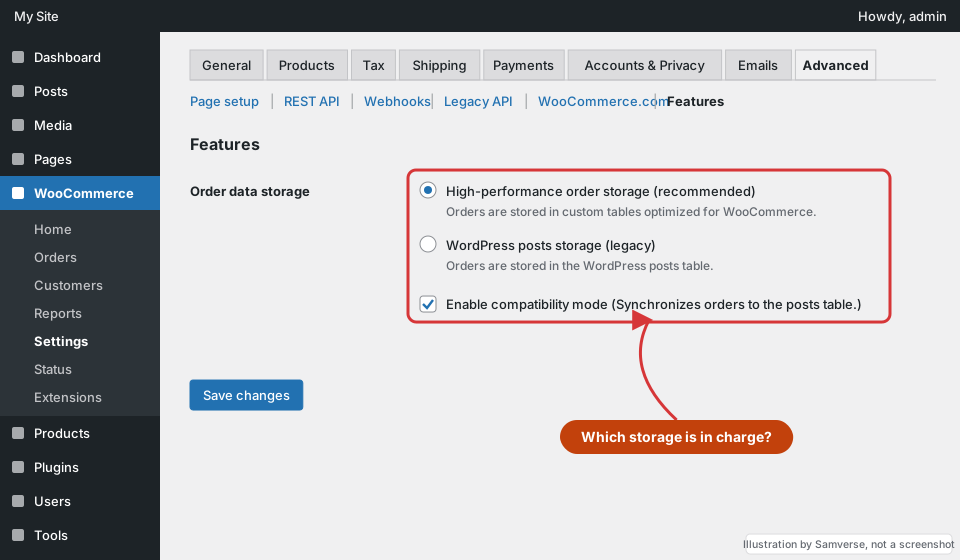
Newer WooCommerce versions store orders in their own database tables (HPOS) instead of the old posts table. During or after migration, mismatches can make orders appear missing in one place:
- Go to WooCommerce, Settings, Advanced, Features and check which order storage is authoritative.
- Check whether compatibility mode (sync between old and new tables) is enabled and whether sync is pending.
- Some older plugins read orders from the old table only. If a plugin, report or app shows fewer orders, it may not support HPOS yet. Check its documentation and update it.
- Do not switch storage modes on a live store without a full backup and a test on staging.
The WordPress backup and restore guide covers taking a safe backup first, and staging sites explains testing changes.
Paid but no order: the gateway callback
When a customer pays through Razorpay, Cashfree, PayU or another gateway, the gateway must tell WooCommerce the payment succeeded. If that message fails, you can get a payment with no order, or an order stuck on Pending payment.
- Find the payment in the gateway dashboard and note the payment ID, email and time.
- Search WooCommerce for the same email and time, including Pending payment and Failed.
- Check the gateway's webhook logs for failed deliveries to your site.
- Check WooCommerce, Status, Logs for gateway and fatal error logs around that time.
- Check firewall, security plugin and Cloudflare rules that might block the gateway's requests.
If the order exists as pending, confirm the payment in the gateway and update the status manually with a note. If there is no order at all, create it manually or refund, depending on what you and the customer agree. Fixing WooCommerce payment gateway problems in India goes deeper into webhooks and gateway settings.
Checkout errors that stop orders being created
Sometimes the checkout fails before an order is created, often after an update. Signs include a spinning checkout button, a blank error message or customers saying they could not complete purchase.
- Check the browser console on checkout for JavaScript errors.
- Check the PHP error log and WooCommerce fatal error log.
- Exclude cart, checkout and my-account pages from caching and script optimisation.
- Test for plugin conflicts on staging; troubleshooting plugin conflicts explains how.
Order emails not arriving
If orders exist but you or the customer did not get the email:
- Go to WooCommerce, Settings, Emails and check that New order, Processing order and Completed order emails are enabled with the right recipient.
- Remember the customer email is sent when the order moves to Processing, so pending orders will not trigger it.
- Set up proper SMTP sending with an authenticated mailbox or email service instead of the server's default mail. WordPress not sending emails covers this.
- Check SPF, DKIM and DMARC for your domain; email deliverability explains them.
- Use an email log plugin to see whether emails were sent and failed, or never sent.
Many stores also add SMS or WhatsApp order notifications so the owner never misses a new order.
Customers cannot see orders in My Account
This usually happens when the order was placed as a guest, or with a different email from the account. Assign the order to the customer account from the order edit screen. Consider requiring account creation or linking guest orders by email, if it suits your store.
Orders missing from apps, reports and integrations
Sometimes orders are fine in WooCommerce but missing elsewhere: the mobile app, analytics reports, a shipping tool such as Shiprocket, an accounting sync or a CRM. Each has its own causes:
- WooCommerce Analytics: reports use their own data that is imported and cached. Check the analytics settings for excluded statuses, and use the option to re-import historical data if numbers look wrong.
- Shipping and courier integrations: many only pull orders with certain statuses, such as Processing. Orders on hold or pending will not appear until their status changes. Check the integration's status settings and connection.
- REST API and webhooks: integrations often rely on WooCommerce webhooks or API keys. A disabled webhook, expired key or security rule blocking requests stops orders syncing. WooCommerce, Settings, Advanced lists webhooks and their status.
- HPOS compatibility: older integrations may not read orders from the new tables.
A quick test is to change a test order's status manually and see whether it appears in the integration. If it does, the integration only reads certain statuses; if it does not, the connection itself is broken. When a single integration is the problem, check its own logs and support documentation before changing WooCommerce settings.
Stuck statuses also affect stock: unpaid orders that never cancel keep holding it. See fixes for WooCommerce stock that does not update.
Scheduled tasks and stuck statuses
WooCommerce uses scheduled actions for tasks such as cancelling unpaid orders, sending some emails and syncing data. If WP-Cron is not running reliably, these tasks pile up and orders can sit in the wrong status. Check WooCommerce, Status, Scheduled Actions for many past-due or failed actions. WordPress cron explained covers how to set up a real server cron job so tasks run on time even on low-traffic stores.
Also review the "Hold stock" setting under WooCommerce, Settings, Products, Inventory. If it is too short, unpaid orders may be cancelled before slower payments such as UPI or net banking complete, which looks to the customer like their order disappeared.
WooCommerce orders not showing after a migration, restore or update
A common time for orders to vanish is straight after a site move, a backup restore or a big WooCommerce update. The causes are different from a failed payment, so check these separately:
- Restored an older backup: any orders placed after that backup was taken are not in the restored database. Export them from the gateway dashboard and recreate or record them before more orders arrive.
- Migrated while the old site was still live: orders may have landed on the old server after the copy was made. Check the old database before cancelling the old hosting.
- HPOS tables not copied: some migration tools miss the newer order tables. If the store uses HPOS and the order list is empty, confirm the order tables exist on the new server.
- Webhooks still pointing at the old address: after a domain or URL change, update the webhook and callback URLs in your payment gateway so new payments reach the new site.
- Cron not running on the new host: pending orders and emails may sit unprocessed until scheduled tasks work again.
The safest pattern is to put the store into a short maintenance window during the final copy, so no orders arrive mid-move, and then place a real test order on the new server before switching DNS fully.
Preventing missing orders
- Back up before every WooCommerce, plugin or storage change.
- Test a real order after updates.
- Monitor gateway webhooks and fix failed deliveries.
- Use SMTP and an email log.
- Review orders against gateway payments regularly, especially pending ones. An order management workflow helps make this routine.
Whatever the cause, write down what happened, what you checked and what fixed it. A short incident note helps if the problem returns or a developer gets involved. Keep a list of orders you corrected manually so you can check they were shipped and invoiced properly.
Find a missing WooCommerce order: step by step
- Go to WooCommerce > Orders, choose "All" and search by the customer's email, phone or name.
- Check the Pending payment, Failed, Cancelled and Drafts views; unfinished block checkouts are kept as drafts.
- Open WooCommerce > Status > Logs and read the payment gateway's log for the time of the purchase.
- In your payment gateway's dashboard, find the transaction, note the order ID it carries and check whether the webhook to your site succeeded.
- Open WooCommerce > Status > Scheduled Actions and look for failed or long-pending actions.
- Under WooCommerce > Settings > Advanced > Features, check which order storage is active and whether compatibility mode is syncing both tables.
- If the payment exists but no order, create the order manually from the transaction details and fix the callback before the next sale.
When to get help
Get help when paid orders are missing, when orders disappear after a migration or update, or when you cannot tell whether the problem is the gateway, a plugin or the server. Missing orders mean missed shipments and unhappy customers. A WooCommerce developer can trace the cause through logs, gateway records and settings and fix it properly, and store maintenance keeps an eye on it afterwards.
FAQs
Why are WooCommerce orders not showing in my dashboard?
Usually because of status filters, pending payment or draft views, HPOS sync settings, caching or user role limits. Check All orders and clear filters first.
A customer paid but there is no order. What happened?
The gateway likely failed to notify WooCommerce, or checkout failed after payment. Compare the gateway dashboard with WooCommerce and check webhook and error logs.
What is HPOS in WooCommerce?
High-Performance Order Storage keeps orders in dedicated tables. If a plugin does not support it, that plugin may not show all orders.
Why am I not getting new order emails?
Check email settings in WooCommerce, then set up SMTP and an email log. Many hosts' default mail sending is unreliable.
Can I recover missing WooCommerce orders?
If the order exists in the database, yes, by fixing filters or sync. If it was never created, you can create it manually from the gateway payment details.
Why are WooCommerce orders showing as pending payment?
Pending payment means the order was created but WooCommerce never received the payment confirmation. The customer may have left the gateway page, or the gateway callback or webhook is failing. Check the payment in your gateway dashboard before marking it paid by hand.
Why are WooCommerce orders not showing after enabling HPOS?
Usually an older plugin or report still reads orders from the posts table while new orders are saved in the HPOS tables. Turn on compatibility mode so both are synced, update or replace plugins that are not HPOS-compatible, and check the Features screen for warnings.
Where are WooCommerce orders stored in the database?
With HPOS, orders live in their own tables such as wp_wc_orders, wp_wc_order_addresses and wp_wc_orders_meta. With legacy storage they are posts of type shop_order in wp_posts, with details in wp_postmeta. Your table prefix may differ.
Need help with your website?
I'm a freelance WordPress developer building fast, SEO-friendly websites since 2020. Tell me what you need and I'll reply with a plan and a fixed quote, usually within 24 hours.
Freelance WordPress development, building websites for clinics, manufacturers, agencies and online stores since 2020.
More about me