WooCommerce Checkout Not Working or Slow? Fixing Spinners, Errors and a Dead "Place Order" Button
WooCommerce checkout not working, slow or showing an error? Fix endless spinners, a dead Place Order button, slow loading, payment and caching issues.

On this page
- WooCommerce checkout not working: match the symptom
- First, see what the browser is telling you
- Cart and checkout pages must not be cached
- JavaScript and plugin conflicts
- Block checkout or classic shortcode checkout?
- Payment plugin issues
- SSL, mixed content, sessions and nonces
- Shipping, pincode and validation errors
- WooCommerce checkout slow: why it lags and what to fix
- Signs it might be something worse
- A safe test routine
- Check WooCommerce page setup and system status
- When to get help
- FAQs
- Start with the browser console and the WooCommerce logs, because the error message usually points straight at caching, a JavaScript conflict or the payment plugin.
- Cart, checkout and account pages must be excluded from page caching, Cloudflare caching and JavaScript optimisation, or checkout breaks in strange ways.
- Find conflicts on a staging copy by switching to a default theme and only WooCommerce plus the gateway, then re-enable plugins one at a time.
When WooCommerce checkout is not working, the cause is usually one of five things: cached checkout pages, a JavaScript conflict from a plugin or theme, a payment plugin problem, an SSL or mixed content issue, or broken sessions. Open the browser console and the WooCommerce logs first; the error message normally tells you which one it is.
This guide covers the common symptoms, an endless spinner, a Place Order button that does nothing, a generic error or a payment that goes through without an order, with checks in a safe order. Every hour checkout is down costs sales, so if you need it fixed quickly, WooCommerce development and support can help.
Short answer: WooCommerce checkout not working is usually one of five things: cached cart or checkout pages, a plugin or theme JavaScript conflict, a payment plugin fault, an SSL or mixed content issue, or broken sessions. A slow checkout usually means heavy plugins, slow shipping or payment calls, or weak hosting. Read the browser console and WooCommerce logs first.
WooCommerce checkout not working: match the symptom
| Symptom | Most likely cause | Where to look first |
|---|---|---|
| Spinner keeps turning after Place Order | JavaScript error or AJAX request failing | Browser console and Network tab |
| Place Order button does nothing | Script conflict or deferred JavaScript | Console errors, optimisation plugin settings |
| "Sorry, your session has expired" | Caching or cookies not set | Cache exclusions, Cloudflare rules |
| Payment taken but no order | Gateway callback or webhook failing | Gateway dashboard and WooCommerce logs |
| "There was an error processing your order" | Gateway, PHP error or validation hook | WooCommerce logs and PHP error log |
| Checkout page blank or layout broken | Theme template or fatal error | Default theme test, debug log |
First, see what the browser is telling you
Open the checkout page in Chrome, right-click and choose Inspect, then open the Console tab. Fill in the form and click Place Order. Red errors in the console usually name the file or plugin causing the problem. In the Network tab, look for the request to the checkout endpoint; if it returns an error code or a response that is not valid JSON, the server side is failing.
Then check WooCommerce, Status, Logs. Payment plugins and WooCommerce itself write errors there, including fatal errors. If you can, switch on WordPress debug logging temporarily so PHP errors are saved to a log file, and switch it off again afterwards.
Cart and checkout pages must not be cached
Checkout depends on sessions and security tokens unique to each visitor. If a caching plugin, server cache or CDN serves a cached copy, buyers see someone else's empty session, expired tokens or a button that fails silently. Check that:
- Cart, checkout and my-account pages are excluded in your caching plugin.
- Host-level caching follows the same exclusions; some hosts need a setting changed in their panel.
- Cloudflare is not caching HTML for those pages, especially with cache-everything rules.
- Pages with WooCommerce cookies bypass the cache.
WordPress caching explained covers the layers, and the Cloudflare WordPress setup guide shows safe rules for stores.
If the problem starts earlier, with products not reaching the cart at all, see WooCommerce add to cart not working.
JavaScript and plugin conflicts
Optimisation plugins that minify, combine, defer or delay JavaScript are a frequent cause. Checkout relies on WooCommerce scripts loading in the right order; delaying them until user interaction can leave the Place Order button dead. Exclude WooCommerce, jQuery and your payment gateway scripts from these features, or switch them off on checkout.
If that does not solve it, test for a conflict on a staging copy:
- Switch to a default theme such as Storefront or a current default WordPress theme.
- Deactivate all plugins except WooCommerce and your payment gateway.
- Place a test order. If it works, the problem is in something you switched off.
- Re-enable the theme, then plugins one at a time, testing checkout after each.
Do this on a staging site rather than the live store; staging sites explained shows how. The full method is in troubleshooting WordPress plugin conflicts.
Block checkout or classic shortcode checkout?
Newer stores use the block-based checkout, while older ones use the classic shortcode. Some payment, shipping, field-editor and COD plugins only support one of them. If checkout broke after a WooCommerce update or after switching checkout type, check each plugin's compatibility. You can switch the checkout page back to the classic shortcode while waiting for a plugin update, as long as you test it fully.
Theme overrides matter too. If your theme has old copies of WooCommerce checkout templates, WooCommerce, Status shows them as outdated. Outdated templates can break fields or the payment section after an update.
Payment plugin issues
When the form submits but payment fails, or money is taken without an order appearing, focus on the gateway:
- Check that API keys are live keys, not test keys, and belong to the right account.
- Confirm the webhook or callback URL in the gateway dashboard matches your site and uses https.
- Make sure security plugins or firewalls are not blocking the gateway's callbacks.
- Update the gateway plugin, and check its log in WooCommerce, Status, Logs.
- Check that your currency and the gateway account settings match.
For Indian gateways such as UPI and card providers, WooCommerce payment gateway not working in India covers gateway-specific checks. If payments succeed but orders do not appear in the admin, see WooCommerce orders not showing.
SSL, mixed content, sessions and nonces
Checkout must load fully over https. If some scripts or images load over http, browsers may block them, which can break the payment form. Check the console for mixed content warnings and fix the URLs; how to fix mixed content warnings walks through it.
Session problems show up as "session expired" or carts that empty themselves. Common causes are caching, cookies blocked by a security setting, a site URL mismatch between www and non-www, or a full database table for sessions. Make sure the WordPress Address and Site Address settings match the URL buyers use.
Shipping, pincode and validation errors
Some checkout failures are not technical faults but rules blocking the order. "No shipping options were found" usually means the buyer's pincode, state or country does not fall into any shipping zone, or a zone has no method enabled. Check your zones and make sure there is a sensible fallback. Pincode checker and COD restriction plugins can also block orders if their lists are outdated or the buyer enters the pincode with a space.
Validation errors that do not make sense, such as a phone number rejected even when it is correct, often come from a field editor plugin or custom code adding strict rules. Test with a ten-digit Indian mobile number with and without the country code, and adjust the rule if genuine numbers fail. Minimum order amounts, coupon restrictions and stock limits can also stop checkout; read the notice WooCommerce shows above the form, because it usually names the rule.
WooCommerce checkout slow: why it lags and what to fix
A slow checkout is a different problem from a broken one, but it loses sales in the same way. Checkout pages cannot be cached, so every load and every update runs WordPress, WooCommerce and your plugins on the server. Common reasons a WooCommerce checkout is slow:
- Heavy shipping or pincode lookups: plugins that call a courier API each time the address changes can add a noticeable wait to every checkout refresh.
- Too many scripts on checkout: sliders, chat widgets, popups and marketing tags loaded on every page also load on checkout. Remove what is not needed there.
- Slow hosting or no object cache: uncached pages depend on raw server speed, so cheap shared hosting shows its limits most at checkout.
- A large database: years of expired sessions, transients and old orders can slow the queries checkout runs.
- Extra checkout fields and validation: each custom field plugin adds work on every update.
Use Query Monitor on a staging copy to see which plugin adds the most time to checkout requests, then fix or replace that one first. Speeding up the server side also reduces timeouts that show up as checkout errors.
Signs it might be something worse
If checkout suddenly shows an extra card form, redirects to an unfamiliar payment page or customers report card fraud after buying, take it seriously. Card skimming malware targets WooCommerce checkout pages. WooCommerce checkout skimmer malware explains how to check and what to do.
A safe test routine
Whenever you update WooCommerce, the theme, the payment gateway or caching settings, run through this checklist:
- Add a product to the cart as a logged-out visitor in a private window.
- Complete checkout with each payment method you offer, including a small real UPI payment and COD if used.
- Confirm the order appears in the admin with the right status.
- Check that the customer and admin emails arrive.
- Repeat on a phone over mobile data.
Update on staging first for major versions, and keep a recent backup so you can roll back if checkout breaks.
Check WooCommerce page setup and system status
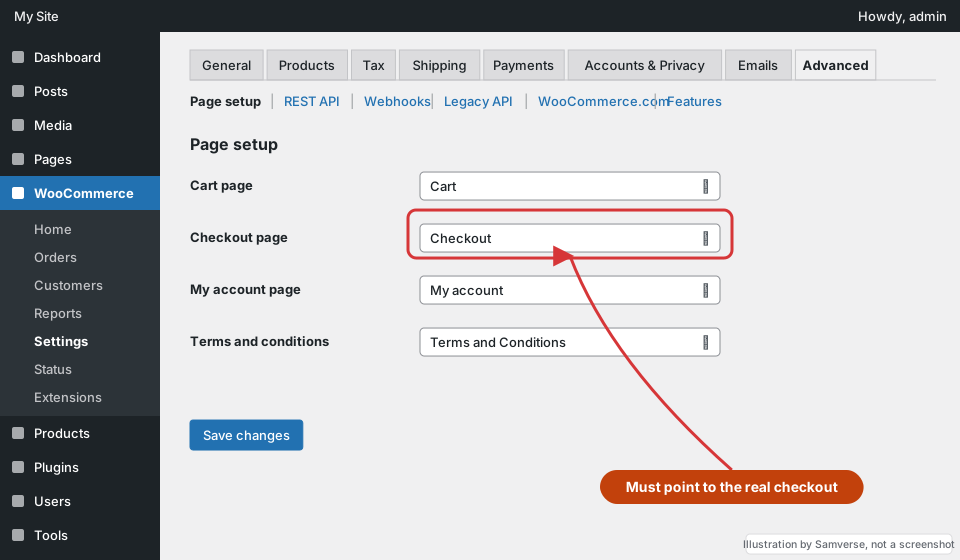
- Go to WooCommerce > Settings > Advanced > Page setup and confirm the Cart and Checkout pages are assigned to the right pages.
- Open the Checkout page in the editor and confirm it holds the Checkout block or the
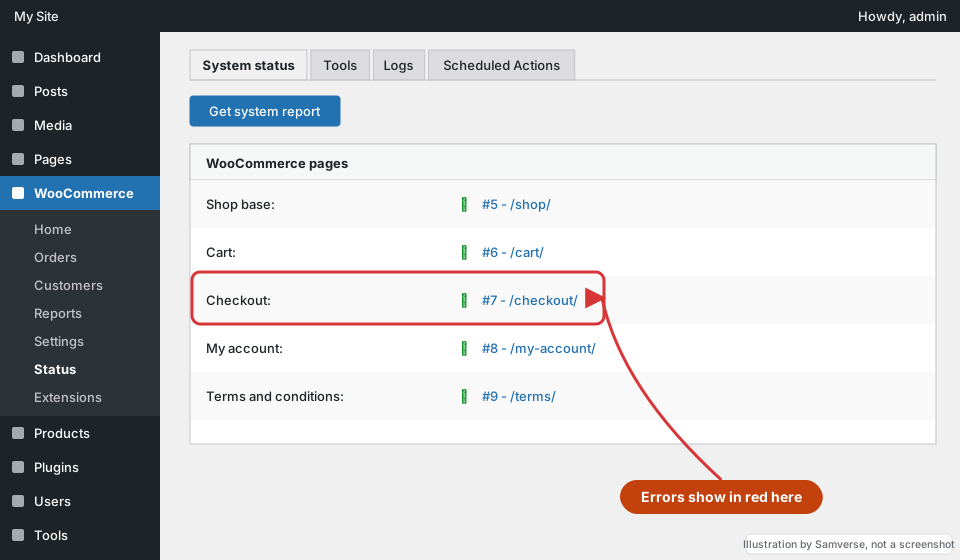
[woocommerce_checkout]shortcode, not both and not neither. - Open WooCommerce > Status > System status and check the WooCommerce pages section for errors.
- In the same report, look under Templates for "outdated copies" of WooCommerce templates in your theme; outdated checkout templates often break it after an update.
- Re-save Settings > Permalinks to refresh rewrite rules.
- In WooCommerce > Status > Tools, run "Clear transients"; use "Clear customer sessions" only if carts are clearly broken, as it empties every cart.
When to get help
If the cause is not clear from the logs, or checkout is broken during a sale or festival campaign, it is usually cheaper to get help than to keep experimenting on a live store. You can hire a WordPress developer in India to diagnose and fix it, and set up a test routine so it does not happen again. You can also send the details through the contact form.
FAQs
Why is my WooCommerce checkout not working?
The most common causes are cached checkout pages, JavaScript conflicts from optimisation or other plugins, payment gateway settings, mixed content and session problems. The browser console and WooCommerce logs usually show which.
Why does the WooCommerce checkout keep spinning?
An endless spinner usually means the checkout request failed or returned an unexpected response, often because of a PHP error, a plugin conflict or a caching issue. Check the Network tab and the logs.
Why does the Place Order button do nothing?
It is usually a JavaScript error or scripts being delayed by an optimisation plugin. Exclude WooCommerce and gateway scripts from delay and defer settings and check the console.
Payment was taken but no order was created. What now?
Check the gateway dashboard and webhook settings, then the WooCommerce logs. Create the order manually for the customer and fix the callback so it does not happen again.
Can caching break WooCommerce checkout?
Yes. Cart, checkout and account pages must be excluded from page caching and CDN caching, or sessions and security tokens fail.
How do I fix a WooCommerce checkout error message?
Read the exact message, then check the browser console and WooCommerce, then Status, then Logs at the same time. Most checkout errors point to a payment plugin, a validation rule, an expired session or a caching problem, and the log usually names which.
Why is my WooCommerce checkout so slow?
Checkout cannot be fully cached, so every step runs on the server. Slow hosting, many active plugins, live shipping-rate or pincode lookups, and payment or analytics scripts all add time. Test with Query Monitor and the browser's Network tab to see which request is slow.
How do I test WooCommerce checkout without real payments?
Put your payment gateway into test or sandbox mode with its test keys, or enable Cash on delivery temporarily, and place orders on a staging copy. Check that the order, stock change and emails all happen, then switch back to live keys.
Need help with your website?
I'm a freelance WordPress developer building fast, SEO-friendly websites since 2020. Tell me what you need and I'll reply with a plan and a fixed quote, usually within 24 hours.
Freelance WordPress development, building websites for clinics, manufacturers, agencies and online stores since 2020.
More about me