WordPress Update Button Missing? Why Updates Do Not Show and How to Fix It Safely
WordPress update button missing? Check your user role, disabled updates in wp-config, host-managed updates, expired premium licences and file permissions.

On this page
- Quick diagnosis table
- WordPress update button missing: check your user role first
- Updates disabled in wp-config.php
- A plugin or must-use plugin is hiding updates
- Your host manages updates
- Premium plugin or theme licence expired
- File permissions and the FTP prompt
- Before you re-enable updates
- Update button missing on multisite
- When updates show but nothing new appears
- Why developers lock updates, and a better alternative
- Quick check: why updates are hidden
- When to get help
- FAQs
- A missing update button usually means your account is not an administrator, updates are disabled in code or by the host, or a premium licence has lapsed.
- Check in order: your role, the Updates screen, wp-config.php settings, must-use plugins, your host panel and premium licences.
- Take a backup before you re-enable updates on a site that has not been updated for a while, and update in a sensible order.
If the WordPress update button is missing, the most common causes are that your user account is not an administrator, updates have been disabled in wp-config.php or by a plugin, your host manages updates from its own panel, or a premium plugin or theme licence has expired so its updates are not offered. Less often, file permissions or a multisite setup hide the button. Work through these checks in order, take a backup, and only then re-enable updates.
Short answer: If the WordPress update button is missing, first check you are logged in as an administrator (on multisite, a Super Admin in Network Admin). Then look in wp-config.php forDISALLOW_FILE_MODSorAUTOMATIC_UPDATER_DISABLED, check for update-blocking plugins or host-managed updates, and renew expired premium plugin licences.
A site that cannot be updated is a security risk, so it is worth fixing quickly. This guide explains each cause and the safe fix.
Quick diagnosis table
| What you see | Likely cause | Where to check |
|---|---|---|
| No Updates menu at all | Not an administrator, or updates disabled in code | Users > Profile, wp-config.php |
| Updates screen says everything is current, but it is not | Update checks blocked or cached | Plugins, host, server connectivity |
| Core updates missing but plugins update | Core auto-update constant or host-managed core | wp-config.php, host panel |
| One premium plugin or theme never updates | Licence expired or not entered | Plugin or theme licence settings |
| Asked for FTP details when updating | File ownership or permissions | Hosting file manager or support |
| Site admin on a network sees no updates | Multisite: only the super admin updates | Network admin |
WordPress update button missing: check your user role first
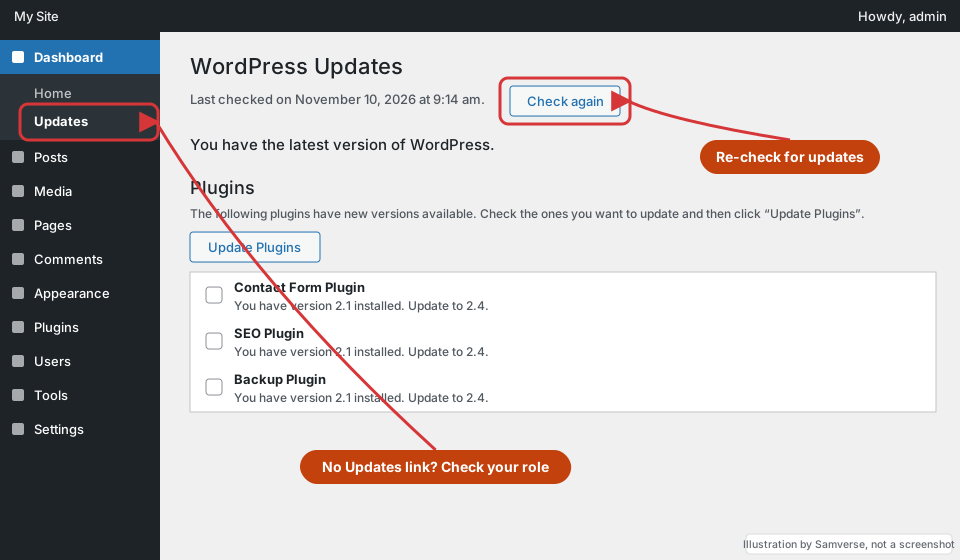
Only administrators can update WordPress, plugins and themes. Editors and shop managers cannot, and they will not see update buttons or the Updates screen. Go to Users, open your profile and check the role. If someone else built the site, they may have given you a lower role deliberately. Ask for an administrator account in your own name, rather than sharing theirs. WordPress user roles explained describes what each role can do.
On a multisite network, even site administrators cannot update. Only the super admin can, from the network admin dashboard. See WordPress multisite explained.
Updates disabled in wp-config.php
Developers sometimes disable updates in the wp-config.php file to stop clients updating a fragile site. Look in that file, through your hosting file manager, for lines such as:
define( 'DISALLOW_FILE_MODS', true );
define( 'AUTOMATIC_UPDATER_DISABLED', true );
define( 'WP_AUTO_UPDATE_CORE', false );
DISALLOW_FILE_MODS removes plugin and theme installs and updates for everyone, which is the usual reason the whole update area disappears. The other two stop automatic updates but leave manual ones. Before changing anything, ask why it was added: there may be a customised plugin that an update would overwrite. If so, that needs fixing properly rather than leaving the site frozen. Always take a copy of the file first. A single typing mistake in wp-config.php can take the whole site offline, so edit carefully and keep the original copy ready to put back.
A plugin or must-use plugin is hiding updates
Some plugins hide update notices or disable updates entirely, and some developers add code in the wp-content/mu-plugins folder, which runs automatically and does not appear in the normal plugin list. Look for plugins with names like "disable updates" or "hide notices", and check the mu-plugins folder. Admin-cleanup plugins can also hide the update count without disabling updates, so visit Dashboard > Updates directly.
Your host manages updates
Some managed WordPress hosts control core updates themselves and hide the button, or offer updates through their own panel. Check your hosting dashboard for a WordPress or auto-update section, and read the host's documentation. If the host has paused updates because of a compatibility issue, such as an old PHP version, fix that first. Updating the PHP version safely covers that step.
Premium plugin or theme licence expired
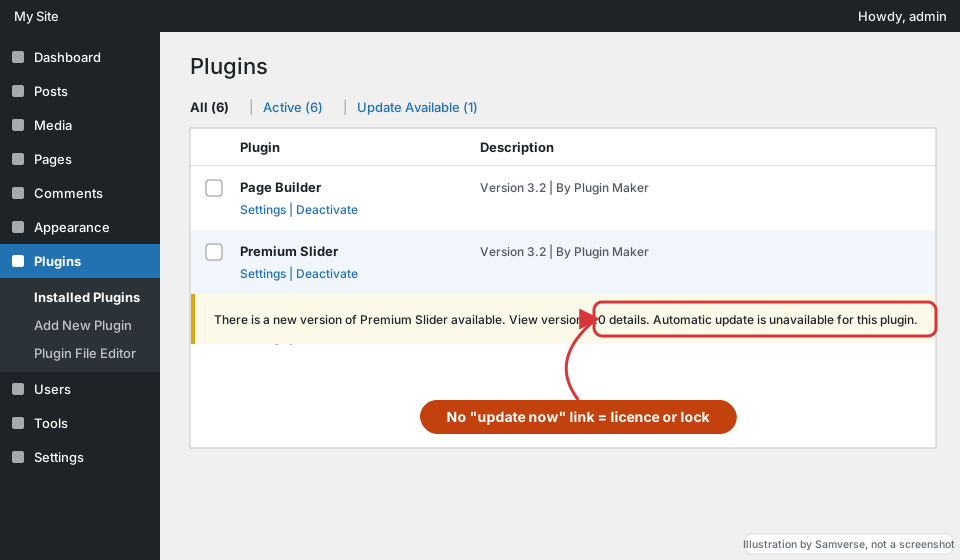
Premium plugins and themes bought from their makers usually update only while a licence is active and entered in the plugin settings. If one premium item never shows updates, check its licence page. A theme bundled inside another product may update only through that product. Avoid "free" copies of premium plugins from unofficial sites: these nulled copies never receive genuine updates and are a common source of malware. If you have lost the account that bought a licence, contact the plugin maker with your purchase details; renewing in your own business name avoids the same problem next time. For themes, see how to update a premium theme safely.
File permissions and the FTP prompt
If WordPress asks for FTP credentials when you click update, it cannot write to its own files. That usually means file ownership on the server does not match the web server user, often after a migration. Do not loosen permissions to fully writable for everyone. Ask your host to correct ownership, or have a developer do it. If an update starts but fails, WordPress update failed walks through download, permission and maintenance-mode errors.
Updates sometimes break things when two plugins clash. Learn how to fix WordPress plugin conflicts before turning automatic updates back on.
Before you re-enable updates
A site that has not been updated for months may have many updates waiting. Updating everything at once can break it. A safer order:
- Take a full backup of files and database, and confirm you can restore it. See the backup and restore guide.
- Ideally, copy the site to staging and update there first.
- Update PHP if it is very old, then WordPress core.
- Update plugins one or a few at a time, starting with security plugins, then WooCommerce and page builders.
- Update the theme last, and check whether a child theme is in use.
- Test key pages, forms and checkout after each stage.
The full routine is in how to update WordPress safely.
Update button missing on multisite
On a multisite network, the Updates screen and the update links only appear in Network Admin, and only for a Super Admin. A site administrator on a subsite will never see them, even with full rights on that site. Ask the network owner to run updates from My Sites, Network Admin, Updates.
When updates show but nothing new appears
Sometimes the button is there, but WordPress insists everything is up to date when you know a newer version exists. WordPress checks for updates on a schedule and caches the result, so new releases can take a while to appear. Clicking "Check again" on the Updates screen forces a fresh check. If that does not help, the server may be unable to reach the WordPress update servers because of a firewall, DNS problem or outgoing connection block at the host. Ask your host to confirm outgoing HTTPS connections are allowed. Object caching or a security plugin that blocks outgoing requests can cause the same symptom.
Plugins that have been closed in the official directory also stop getting updates. If a plugin shows no updates for a long time, check its page in the directory. A closed or abandoned plugin should be replaced, not left running. Look for an alternative that is actively maintained, has recent updates and supports your WordPress and PHP versions, then test the swap on staging.
If you manage several sites, keep a simple list of each one with its WordPress version, PHP version, premium licences and their renewal dates. A missing update is much easier to spot when you know what each site should be running, and licence lapses stop being a surprise.
Why developers lock updates, and a better alternative
Locking updates is usually a shortcut. The developer may have edited a plugin directly, customised a parent theme instead of using a child theme, or wanted to stop clients breaking the site. Each of these has a proper fix: move customisations into a child theme or a small custom plugin, document which plugins are customised, and give clients an editor account for content while an administrator handles updates on a schedule. That keeps the site both stable and secure. WordPress child themes explained covers the theme side.
Quick check: why updates are hidden
- Open Dashboard > Updates while logged in as an Administrator, and click "Check again".
- Search wp-config.php in your file manager for
DISALLOW_FILE_MODSorAUTOMATIC_UPDATER_DISABLED. Either can hide update controls. - For a premium plugin, check that its licence key is entered and active; many only update with a valid licence.
When to get help
Get help when your host manages updates and blocks them, when the site is several major versions behind, or when you are afraid an update will break it. WordPress maintenance and support tests updates on staging first and keeps backups. You can also send the details through the contact form.
FAQs
Why is there no update button for plugins in WordPress?
Usually because your account is not an administrator, updates are switched off in wp-config.php or by a plugin, your host manages updates, or a premium licence has expired. On multisite, plugin updates are only shown in Network Admin to a Super Admin.
Why is the WordPress update button missing?
Usually because you are not logged in as an administrator, updates are disabled in wp-config.php or by a plugin, your host manages updates, or a premium licence has expired.
How do I enable updates that were disabled in wp-config.php?
Back up the file, then remove or change the line that sets DISALLOW_FILE_MODS to true. First find out why it was added, in case a customised plugin would be overwritten.
Why does WordPress ask for FTP details when I update?
WordPress cannot write to its own files because of file ownership or permission settings on the server. Ask your host to fix ownership rather than making files writable by everyone.
Why does only one plugin never show updates?
It is likely a premium plugin whose licence has expired or was never entered, or a plugin that has been removed from the official directory and no longer gets updates.
Can an editor update plugins in WordPress?
No. Only administrators can update core, plugins and themes, and on multisite only the super admin.
Is it safe to leave updates disabled?
Not for long. Outdated plugins and themes are a common way sites get hacked. If updates break something, fix the cause rather than freezing the site.
Need help with your website?
I'm a freelance WordPress developer building fast, SEO-friendly websites since 2020. Tell me what you need and I'll reply with a plan and a fixed quote, usually within 24 hours.
Freelance WordPress development, building websites for clinics, manufacturers, agencies and online stores since 2020.
More about me